Rally Co-Pilot
Manual

How to use Rally Co-Pilot

This manual explains every screen, button and setting in the Rally Co-Pilot iPhone app. It starts with your first special stage, walks through race mode, and covers timers, remote controls, RaceBox, the Apple Watch app, events and the settings.

Every screenshot is taken from the current app version. Button names are written in bold exactly as they appear on screen. Tap any chapter in the contents to jump there.

  • iPhone and iPad, iOS 16 or newer
  • German and English screenshots
  • Updated for app version 7.1

Chapter 1

Getting started

Rally Co-Pilot times regularity stages, also called time-speed-distance (TSD) stages. You tell the app the target speed and the distance of each section. It calculates the target time, counts it down while you drive and shows you live whether you are ahead of or behind the target.

1.1First launch and onboarding

When you open the app for the first time, a short introduction explains what Rally Co-Pilot does and asks two quick questions about your experience and your next rally. Tap Get Started and Continue to move through it.

The last page, Let's build your first stage, takes you straight into the stage editor so you can create your first special stage. Chapter 2 explains that editor in detail. You can also tap Skip for now and create your first stage later from the Co-Pilot tab.
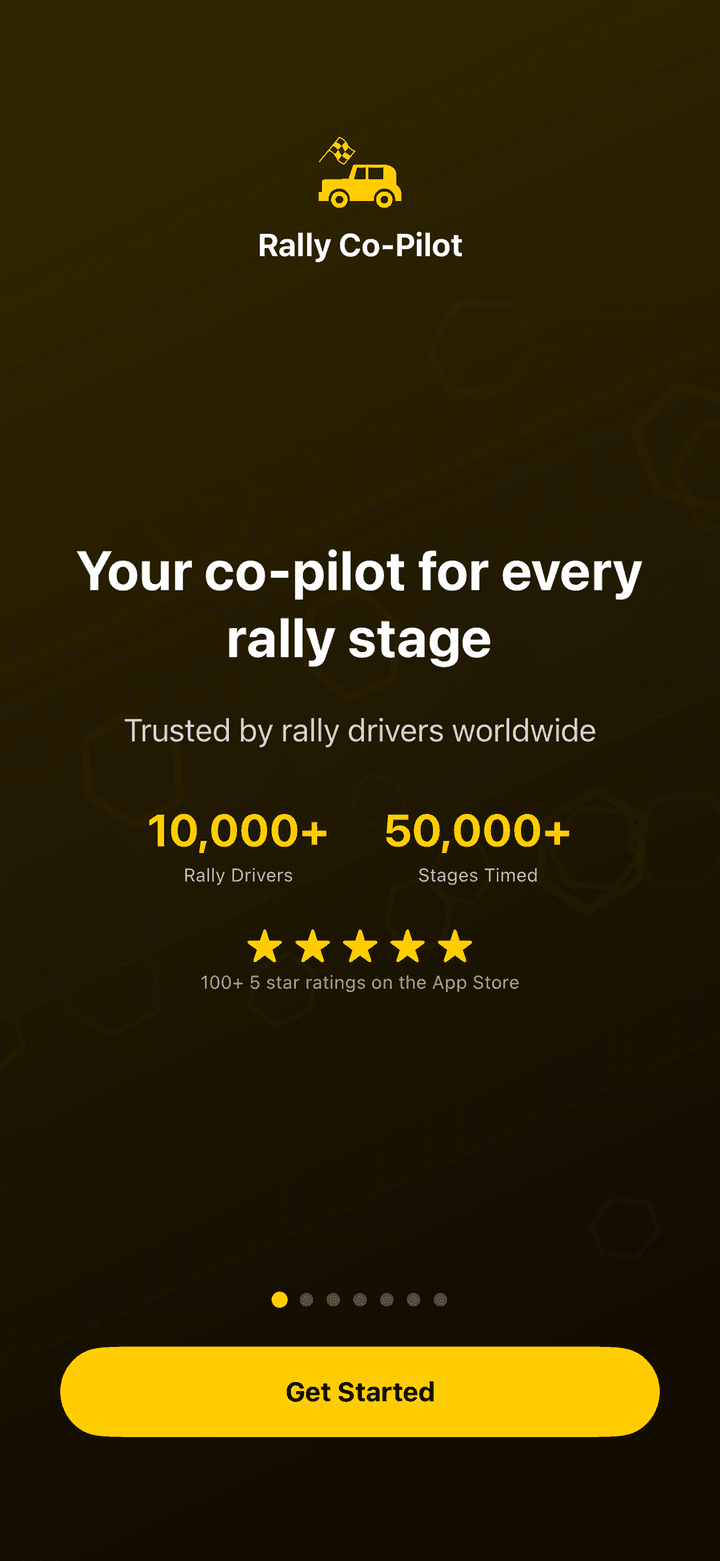
First onboarding page of Rally Co-Pilot with the Get Started button
Onboarding, page 1

1.2The four tabs

The app has four tabs at the bottom of the screen. Everything in this manual lives in one of them.

TabWhat it does
Co-PilotYour list of special stages. Tap + to create one, tap a stage to open race mode.
TimerIndependent stopwatches and countdowns, for example for time controls.
EventsCalendar of classic car rallies with dates, descriptions, websites and maps.
SettingsCountdown sound, iCloud sync, remote controls, RaceBox, spectating, help and legal.
Co-Pilot tab showing the list of special stages with a plus button
The Co-Pilot tab with your stages

1.3Permissions the app asks for

Rally Co-Pilot asks for permissions only when it needs them. Here is what to expect and what to choose.

  • Location: requested the first time you open a stage in race mode. Choose Always. iOS then keeps delivering GPS to Rally Co-Pilot while the phone is locked or another app is in front, so the countdown, the pace, the lock screen and the Apple Watch keep working when you check the roadbook in another app or the screen locks. With Allow While Using App the app still works, but iOS can pause location updates as soon as it leaves the foreground. Without any permission the header shows a red Location disabled and the pace meter cannot work.
  • Bluetooth: requested only when you open Settings › Connect RaceBox. You never see this prompt if you do not use a RaceBox. Game controllers are paired in the iOS Settings app, not in Rally Co-Pilot, so they need no in-app permission.
  • Camera: requested when you tap Take Photo in the roadbook scanner.

The blue location indicator in the status bar is normal while a stage is running. The app keeps a live location session so the countdown, the lock screen and the Apple Watch keep updating with the phone locked.

Chapter 2

Creating a special stage

A special stage is a named run, for example one regularity test of a rally. It is made of one or more sections. Each section has a target speed, a distance and a target time. You enter two of those values and the app calculates the third.

2.1Terminology used in the app

The app uses a few words that mean specific things. The on-screen labels are not always consistent, so here is the mapping.

TermMeaningOn-screen labels
Special stageA named run that you open in race mode. It appears in the list on the Co-Pilot tab.Special stages, Create, Edit
Section (stage part)One segment inside a special stage with its own target speed, distance and time. Sections are timed one after another.Add stage, Stages, Reset section?
CircuitA special kind of section for regularity runs on a closed course. Lap 1 sets a reference time and every following lap has to match it.Add circuit, Circuit, Reference lap
RunOne actual timed attempt at a section. You can reset a run and drive the section again with the same targets.Start, Reset

2.2Creating a new stage

Each row in the Stages list shows one section with its target speed, distance and time. Sections are timed in the order shown here.

  1. 1Open the Co-Pilot tab and tap + in the top right corner. If you have no stages yet, tap the large Create button instead.
  2. 2Type a name into the Name field, for example the name of the regularity test from your roadbook. The list on the Co-Pilot tab is sorted alphabetically by this name, so a prefix like "SS1", "SS2" keeps the stages in order.
  3. 3Add at least one section with Add stage (see 2.3), Add circuit (see 2.5) or Scan Roadbook (see 2.6).
  4. 4Tap Save in the top right. Save stays greyed out until the stage has a name and at least one section.

Cancel discards everything you added in this editing session. Sections you added but did not save are deleted.

Empty Co-Pilot tab with the Create button
Empty stage list
Stage editor with name field, list of sections and the Add stage, Add circuit and Scan Roadbook buttons
The stage editor

2.3Adding a section: speed, distance and time

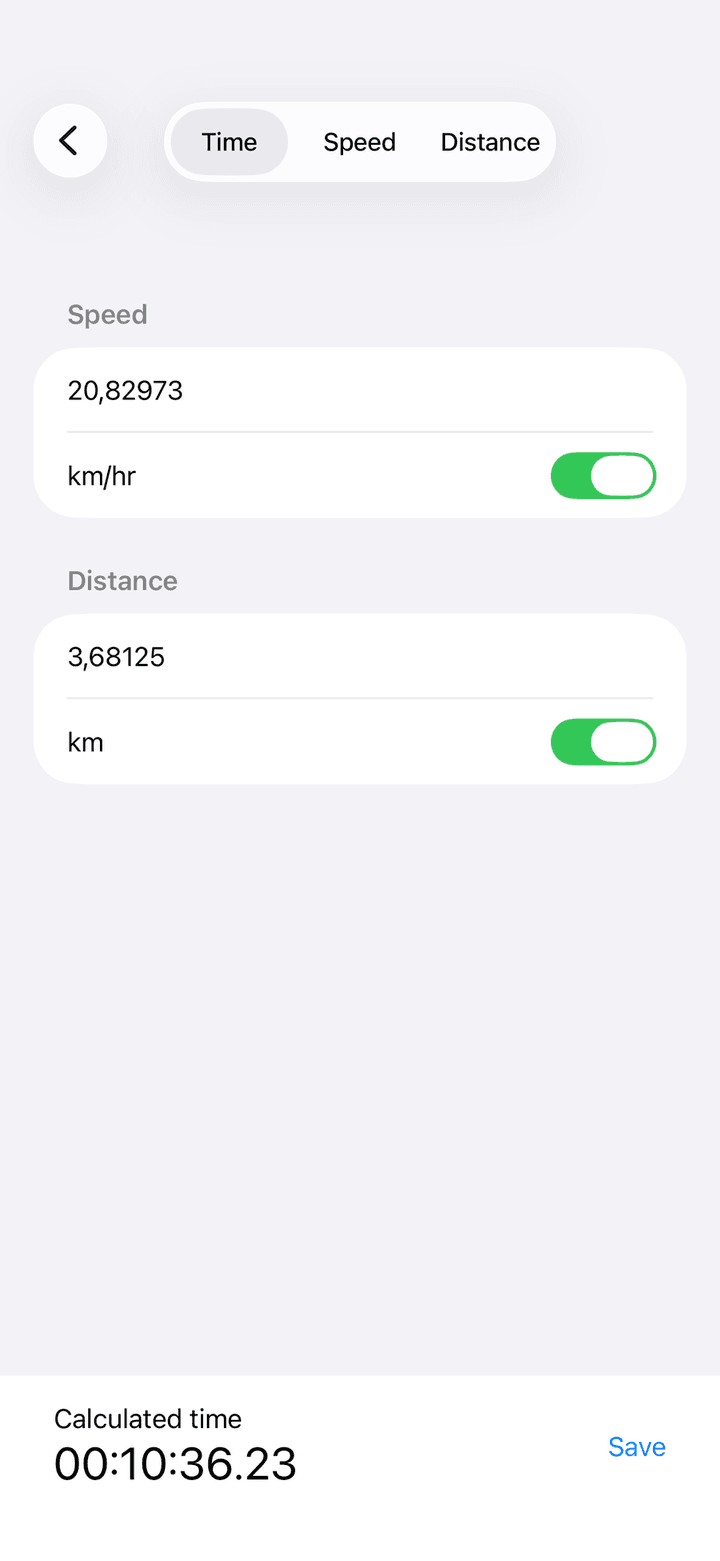
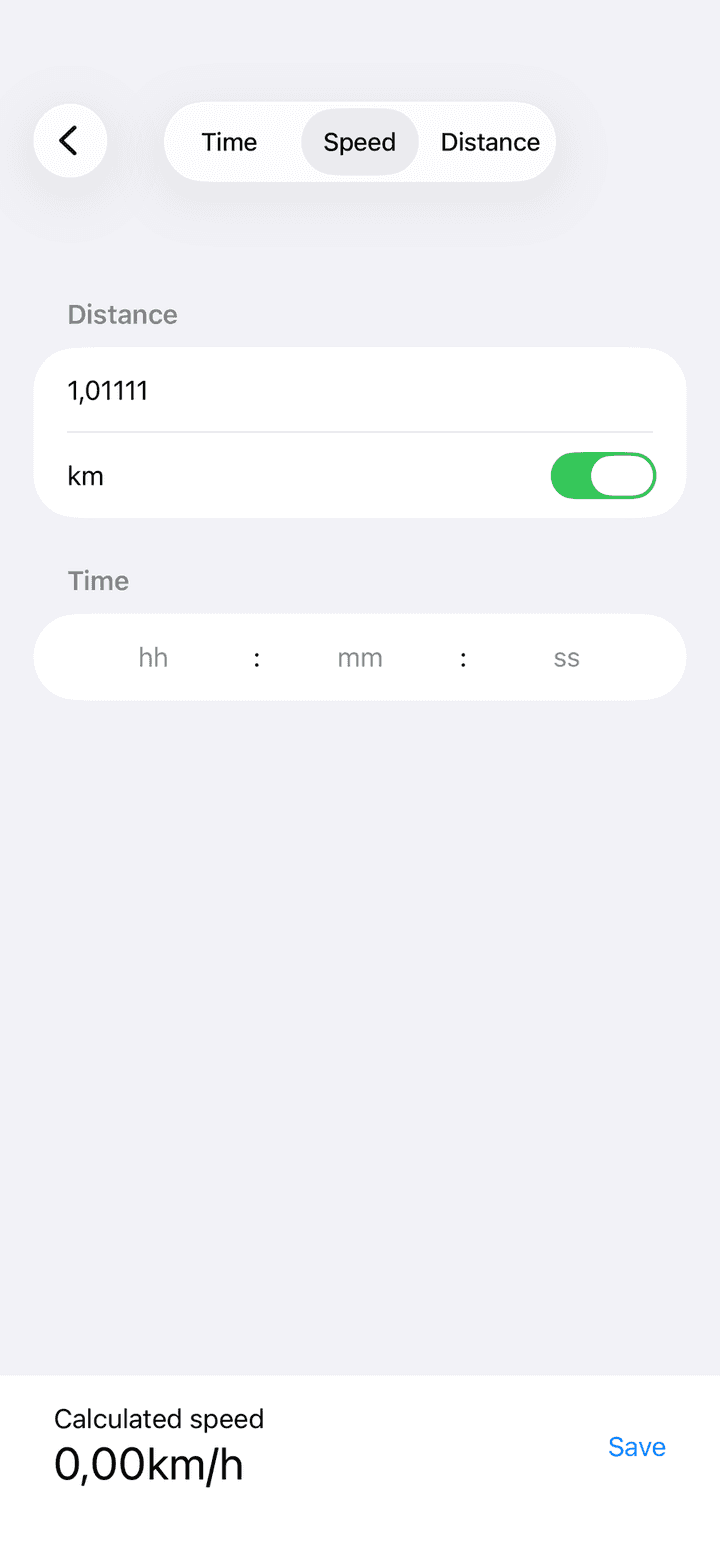
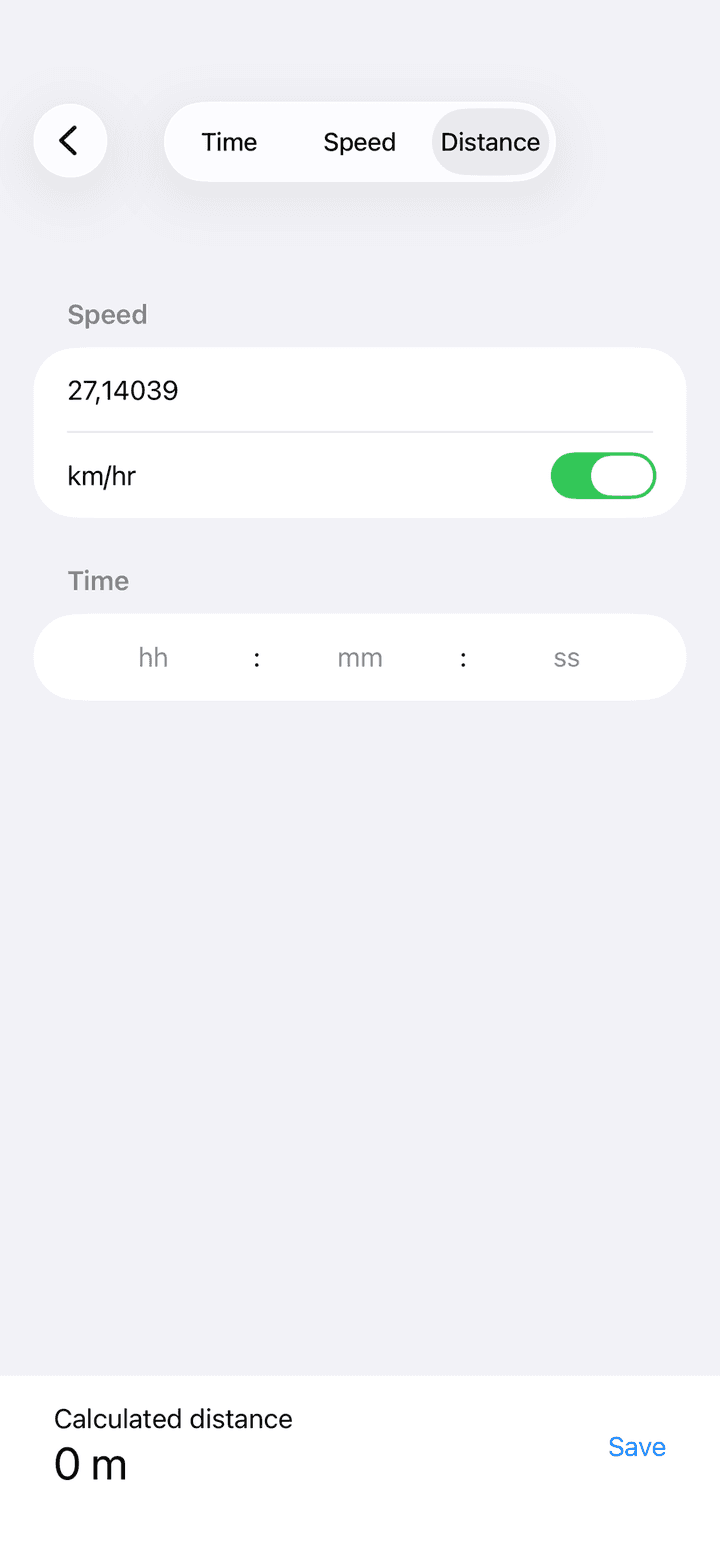
Tap Add stage in the stage editor to open the section editor. At the top there is a picker with three options: Time, Speed and Distance. The selected option is the value the app calculates for you. The other two are the values you type in. The input for the calculated value is hidden.

The most common case in a regularity rally is Time: the roadbook gives you a target speed and a distance, and the app calculates the time you have to hit. Choose Speed when the roadbook gives you a distance and a time, and Distance when you know speed and time.

  1. 1Pick what should be calculated with the picker at the top. Time is selected by default.
  2. 2Enter the Speed. The switch next to the field toggles the unit: on is km/h, off is mph. The default follows your device region.
  3. 3Enter the Distance. Its switch toggles km (on) and mi (off). Very short sections work too, for example 0.075 km for 75 metres. Up to five decimals are kept.
  4. 4For Speed or Distance mode, enter the time in the hh, mm and ss fields.
  5. 5Watch the bar at the bottom. It shows Calculated time, Calculated speed or Calculated distance live while you type.
  6. 6Tap Save. The section is added to the stage. It is only stored permanently when you also save the stage.
  • You can type a comma or a dot as the decimal separator.
  • Both entered values must be greater than zero. If one is missing, its placeholder turns red and the field shakes when you tap Save.
  • When you re-open an existing section, the time fields are empty even though the stored time is still used. Type a new time only if you want to change it.
Section editor calculating the time from speed and distance
Calculate the time
Section editor calculating the speed from distance and time
Calculate the speed
Section editor calculating the distance from speed and time
Calculate the distance

2.4Editing, reordering and deleting sections

All section management happens in the stage editor.

  • Edit a section: tap its row. The section editor opens with the stored values.
  • Reorder: tap Edit above the section list. Drag handles appear on the right. Drag the rows into the order you drive them, then tap Done. The order is stored when you save the stage.
  • Delete: swipe a row to the left, or tap Edit and use the red minus button. The row disappears at once, but the deletion is only committed when you tap Save. If you tap Cancel, the section is back.
  • Duplicate: there is no copy function for stages or sections. Create a new stage and enter the values again, or scan the roadbook page.

2.5Adding a circuit section

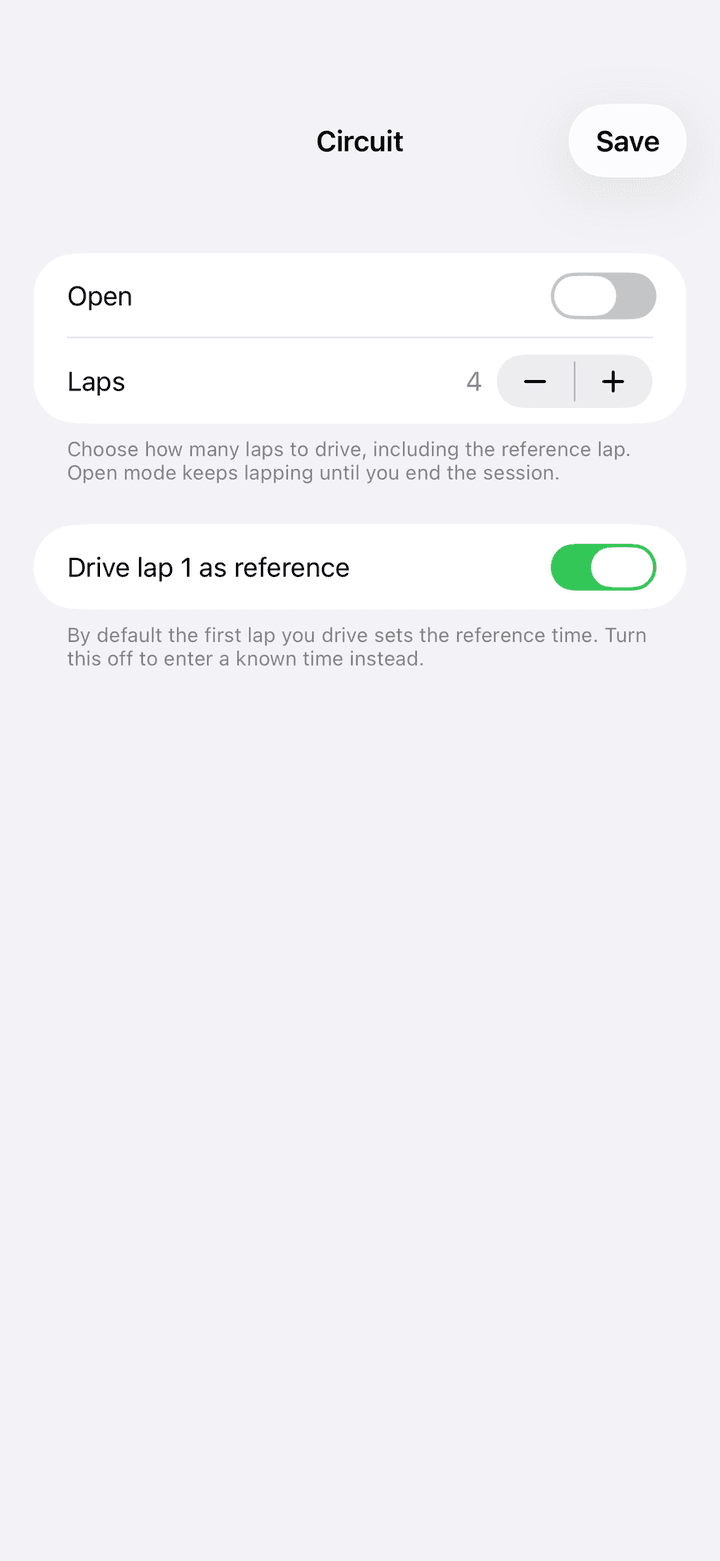
Use a circuit for a regularity run on a closed course where you do not know the length or the target speed up front. The first lap you drive sets the reference time. Every following lap counts down from that reference and shows how far you are off. Tap Add circuit in the stage editor to open it.

  • Open: switched off by default. Off means you set a fixed number of laps. On means open mode: you keep lapping until you end the session yourself.
  • Laps: the number of laps to drive, including the reference lap. Use the minus and plus buttons. The range is 2 to 30, the default is 4. This row is hidden in open mode.
  • Drive lap 1 as reference: on by default. The first lap you drive becomes the reference time. Switch it off if you already know the lap time. Time fields for hours, minutes, seconds and hundredths appear so you can type it.
  • Save: always available when lap 1 is driven as reference. With a typed reference the time has to be greater than zero.

In the stage editor a circuit row shows Circuit, the number of laps or Open, and the typed reference time or a dash when the reference will be driven.

Circuit editor with the Open switch, the Laps stepper and the Drive lap 1 as reference switch
The circuit editor

2.6Scanning a roadbook page

The roadbook scanner reads a printed speed table and turns it into sections. It runs completely on your device. No photo, PDF or recognised text leaves the phone.

The Scan Roadbook button appears in the stage editor below Add circuit. It only shows on devices that support it: iOS 26 or newer with Apple Intelligence switched on and its model downloaded. If you do not see the button, your device does not meet these requirements.

  1. 1Tap Scan Roadbook in the stage editor.
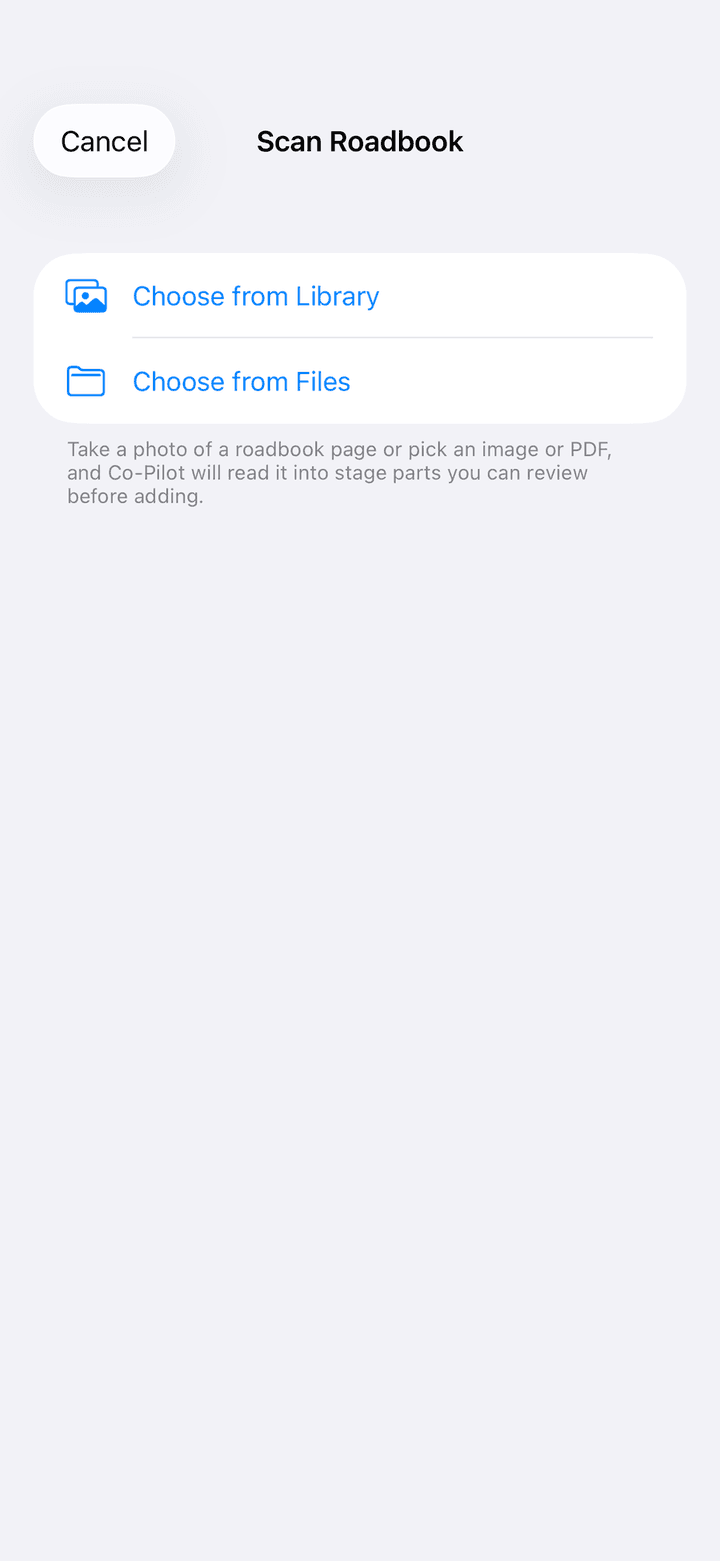
  2. 2Choose Take Photo, Choose from Library or Choose from Files. Files accepts images and PDFs. For a PDF only the first ten pages are read.
  3. 3Wait while Reading roadbook… is shown. Text recognition and parsing happen on the device.
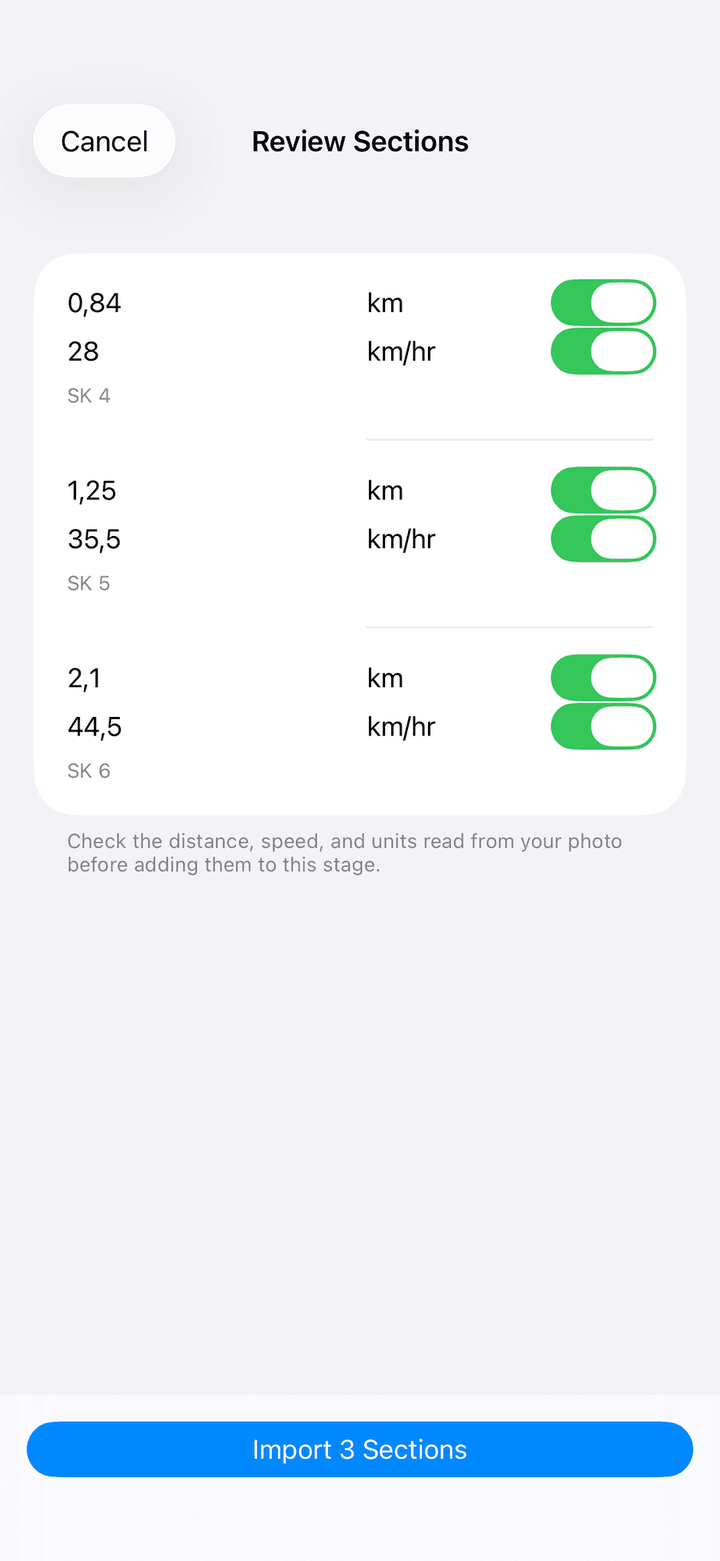
  4. 4Check every row on the Review Sections screen. Each row has a Distance field with a km/mi switch, a Speed field with a km/h/mph switch and an optional Note. Swipe a row to the left to delete it.
  5. 5Tap Import … Sections. The sections are added to the stage editor exactly like manual entries.
  6. 6Tap Save in the stage editor. Nothing is stored until you do.
  • Two table layouts work: a speed table where each row lists the section length and the average speed, and a cumulative table that lists total distance against total time without a speed column.
  • Photograph the page flat, sharp and well lit. Cover pages, tulip diagrams and entry lists are ignored.
  • If the scan fails you see a message with Try Again and Add Manually. The messages tell you whether the page was unreadable, too long or whether the scanner is unavailable on the device.
Roadbook scanner with the Choose from Library and Choose from Files buttons
Pick a photo, image or PDF
Review Sections screen with editable distance, speed and note fields and an Import button
Review before importing

2.7Managing your stages

  • Open a stage in race mode by tapping its name.
  • Edit a stage: press and hold its row, then tap Edit. You can also start editing from race mode via the menu in the top right.
  • Delete a stage: press and hold the row and tap Delete, or swipe the row to the left. Deletion happens immediately and there is no confirmation.
  • Sorting: stages are sorted alphabetically by name.
  • Which stages you see: with Sync across devices switched on, you see all stages from all your devices signed in to the same iCloud account. With sync off, the list only shows stages created on this device. The other stages are not deleted, only hidden.

If the app was closed while a section was running, the Co-Pilot tab reopens that stage automatically and the countdown continues from the stored start time.

The list of special stages on the Co-Pilot tab
Long press a row for Edit and Delete

Chapter 3

Race mode: driving a stage

Race mode is the screen you use in the car. Tap a stage on the Co-Pilot tab to open it. The screen stays awake as long as it is open. GPS starts immediately, and any remote control you enabled is armed.

3.1The race screen

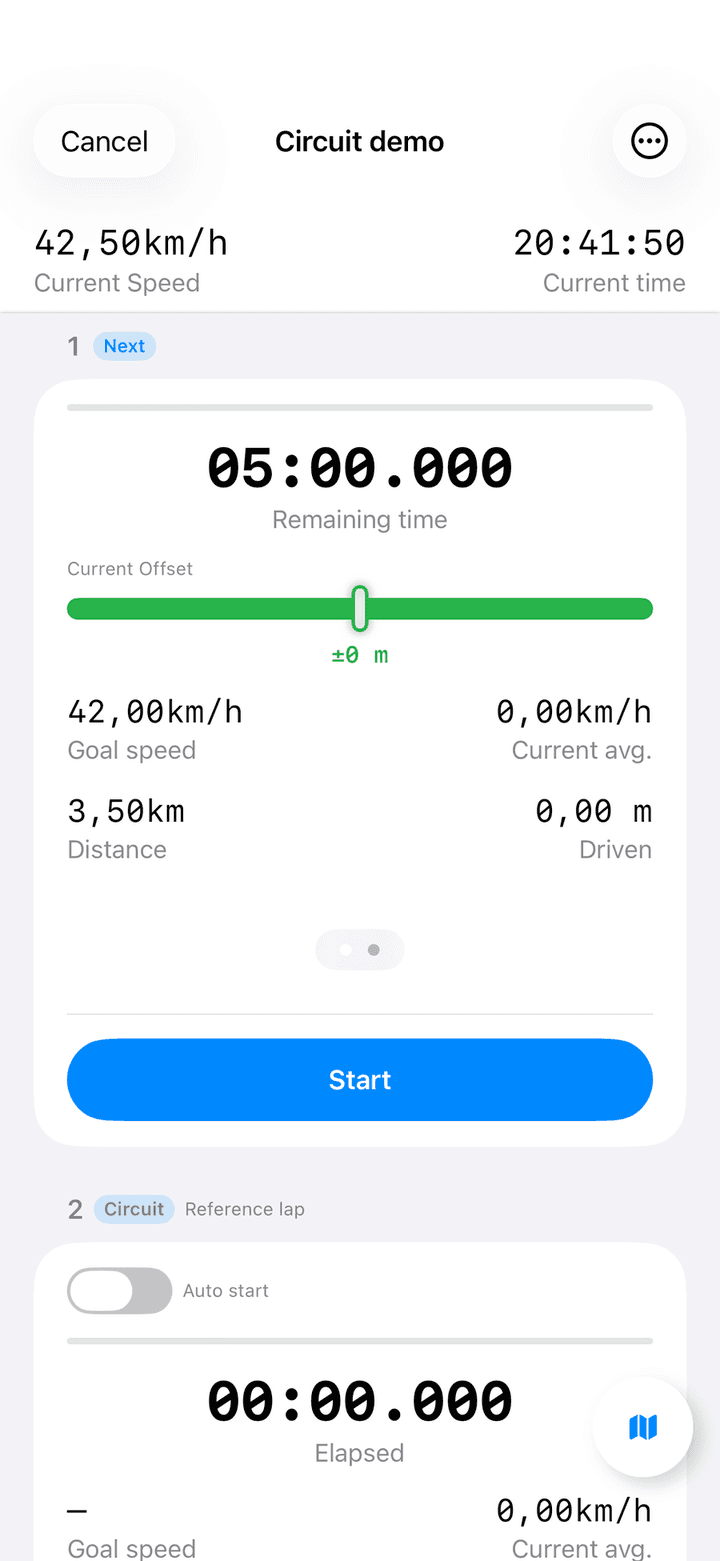
The title bar shows the stage name. Cancel on the left leaves the stage. If a section is running, the app asks Do you really want to cancel? first. Confirming resets every run of the stage and returns to the list. The menu button on the right offers three actions: Share race (chapter 4), Set start time (see 3.4) and Edit, which also cancels any running section.

Below the title bar is the header with two values. Current Speed on the left is your live GPS speed. Tap it to switch between km/h and mph. Current time on the right is the clock of the day, useful for hitting your start minute.

Below the header, each section of the stage is shown as a card, numbered in driving order. The list scrolls automatically so the active section is at the top. A round map button sits in the bottom right corner (see 3.6).

  • A red Location disabled in place of the speed means the app has no location permission. Open the iOS Settings app and allow location for Rally Co-Pilot.
  • A red Bad GPS... means the GPS fix is too inaccurate at the moment. Wait for a clear view of the sky.
  • With a RaceBox selected as GPS source a small badge appears above the speed: RaceBox • 3D in green, or RaceBox unavailable • phone GPS in orange (chapter 7).
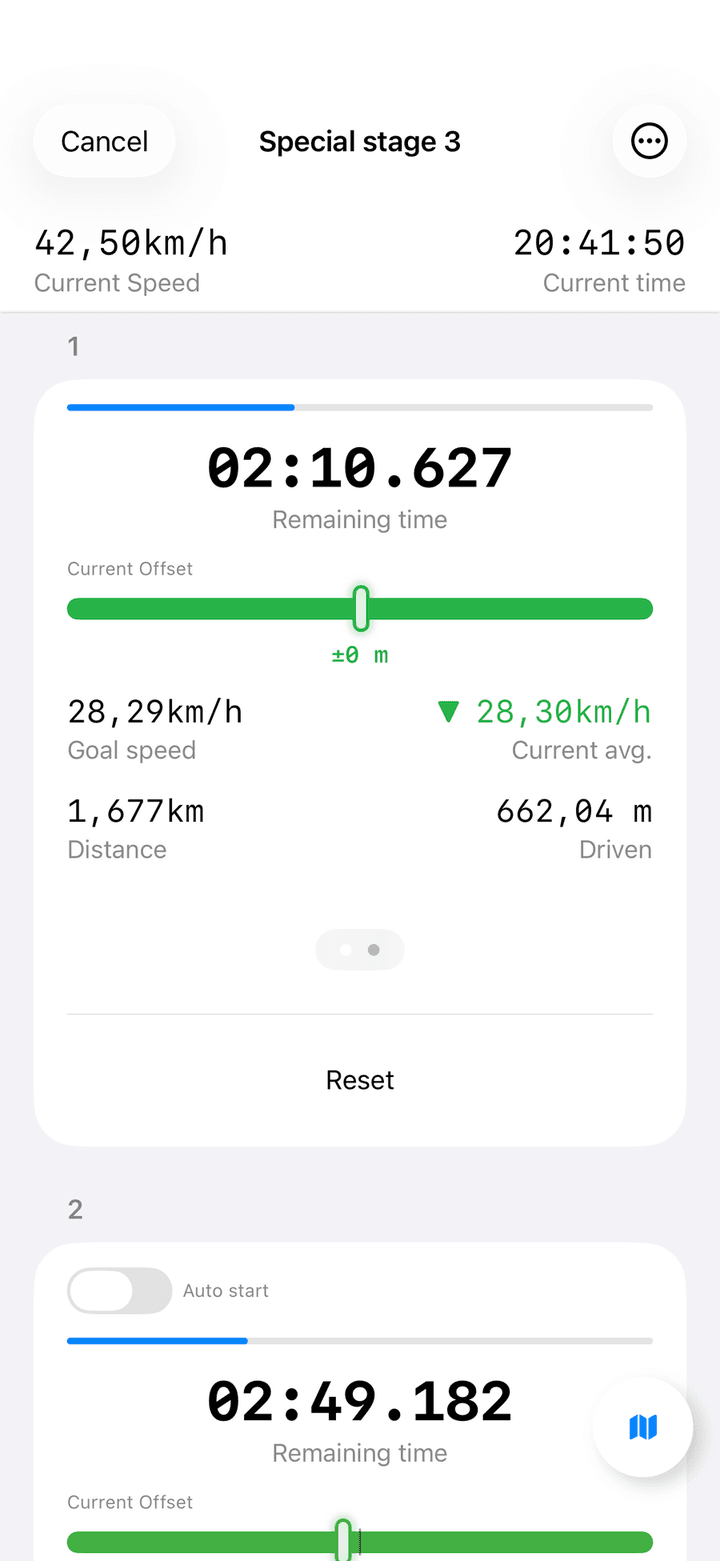
Race mode with current speed, current time, a running section with countdown, pace meter, speeds and distances
Race mode with section 1 running

3.2Reading a section card

Every section card has the same layout from top to bottom.

ElementWhat it shows
Number and Next badgeThe section number in driving order. Next marks the section a remote or controller press would start.
Auto start switchShown on every section except the first. When on, this section starts by itself the instant the previous section's countdown reaches zero. Its own Start button is then disabled.
Progress barHow much of the target time has passed.
Remaining timeThe countdown in minutes, seconds and milliseconds. Before the start it shows the full target time. Tap the number to cycle through three sizes. The choice is remembered.
Current OffsetThe pace meter. It tells you whether you are ahead or behind the target speed. See 3.3.
Goal speedThe target average speed you entered for this section.
Current avg.Your average speed since the start of the run, coloured like the pace meter. A triangle pointing up means speed up, pointing down means slow down.
DistanceThe target distance of the section.
DrivenThe distance covered so far in this run.
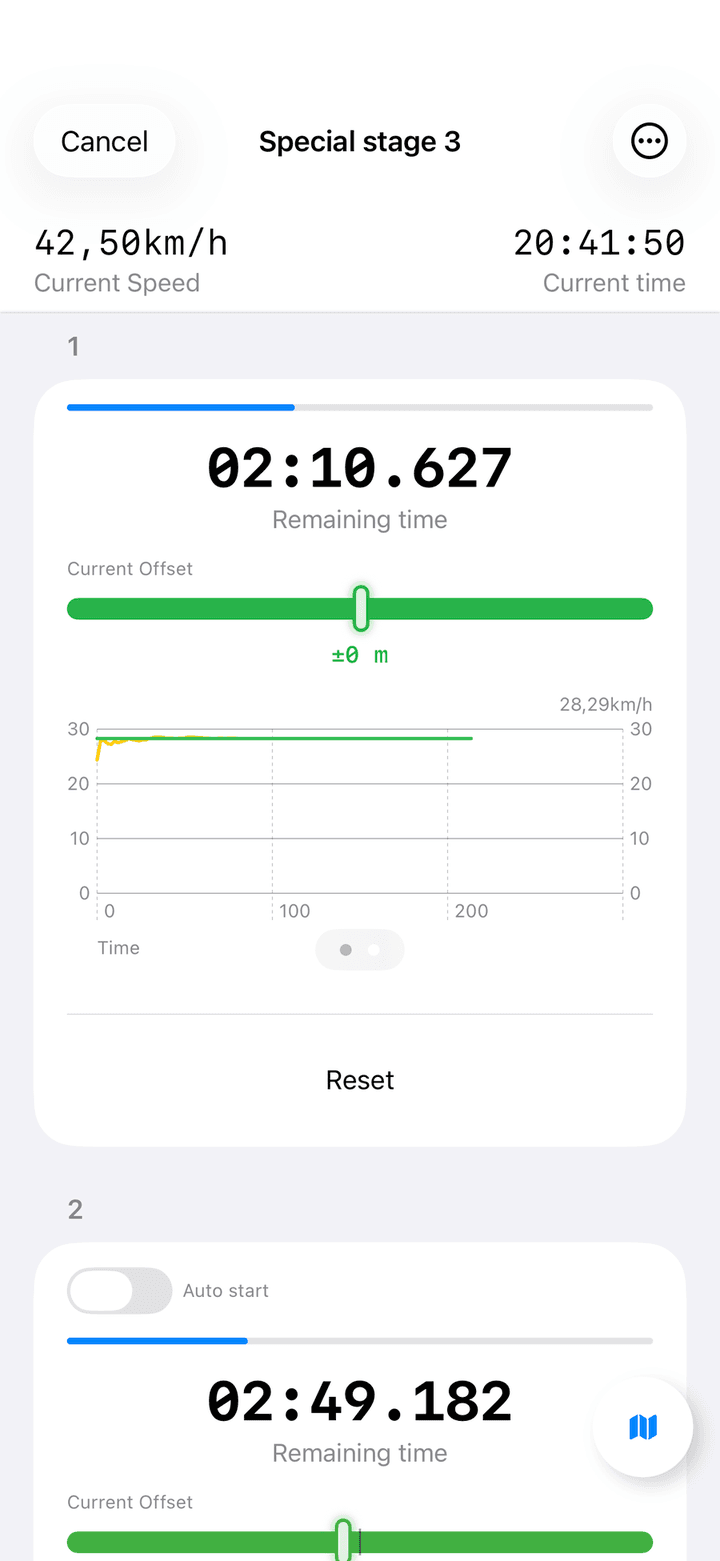
Page dotsSwipe the numbers to the left to see a live chart. The yellow line is your average speed over time, the green line is the target speed.
Start / ResetStart begins the run. While running, the button becomes Reset, which asks for confirmation and clears only this run. Targets stay.

The average speed is the mean of all GPS readings since the start, and Driven is that average multiplied by the elapsed time. Both settle down after the first few seconds of a run.

A section card with progress bar, remaining time, pace meter, goal speed, current average, distance and driven distance
Page 1: the numbers
A section card showing the live speed chart instead of the numbers
Page 2: the speed chart

3.3The pace meter explained

The pace meter under Current Offset answers one question: am I where the target average speed says I should be? It compares the distance you have driven with the distance you should have driven at the target speed in the elapsed time.

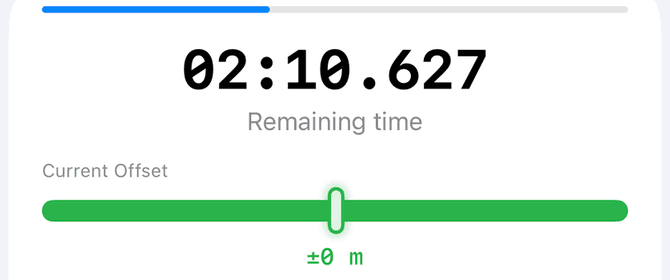
A positive value means you are ahead, so you have driven further than planned and are early. A negative value means you are behind and late. The needle sits in the middle when you are exactly on target, moves to the right when you are ahead and to the left when you are behind. The scale ends at ten seconds either way.

The colour of the bar tells you how far off you are: green up to about two seconds, orange around five seconds, red at ten seconds or more. The Current avg. number uses the same colour, so both indicators always agree.

Tap the number under the bar to switch between metres (+12 m) and seconds (+1.4 s). The app remembers your choice.

Section card detail with the remaining time and the pace meter labelled Current Offset
The pace meter: needle in the middle and a green bar means you are on target

For a regularity stage the goal is a needle in the centre and a green bar. Small corrections early are better than a big correction at the end.

3.4Starting, chaining and finishing sections

A section run always ends when its countdown reaches zero. The app does not end a section based on GPS distance. GPS is only used for speed, distance, pace and the map. That makes the timing reliable even in a tunnel or a forest.

  • Start button: tap Start on the card. This is the normal way to start section 1 at the start line.
  • Auto start: switch it on for section 2 and later. The section then starts exactly when the previous countdown ends, with no gap. Auto start is not saved with the stage. It is switched off again when you reopen the app.
  • Set start time: in the menu, choose Set start time. A Planned start time picker appears under the header. At that clock time the app starts the Next section by itself. Choose Cancel start time in the menu to disarm it.
  • Volume button or Bluetooth remote: a press starts the Next section (chapter 6).
  • Game controller: A or Cross starts, B or Circle stops, the D-pad moves the Next badge (chapter 6).
  • Countdown announcements: during the last ten seconds the app speaks each second, or beeps if you enabled Use beep instead of countdown. Every second is also a haptic tap, and zero is a stronger success haptic. Change the number of seconds in Settings.
  • At the finish: the card keeps its final values. The progress bar stays full, Current avg. and Driven freeze, and the chart keeps the recorded curve. The button turns back into Start, and pressing it begins a fresh run on the same targets.
  • Reset: tap Reset on a running section and confirm with Yes. Only this run is cleared. Target speed, distance and time stay.

Edit in the menu cancels every running section before it opens the editor. Finish the stage first if you only want to correct a later section.

3.5Circuits in race mode

A circuit appears in the race list as one card per lap. Each card carries a Circuit badge and a lap title: Reference lap for lap 1, Lap 2 / 4 with a fixed lap count, or Lap 2 in open mode. Laps you have not reached yet show Waiting for the reference lap until lap 1 is done, then they fill in speed, distance and time.

  • Reference lap: tap Start at the line. The time counts up under Elapsed. When you cross the line again, tap End reference lap. The lap time becomes the Reference time, and the app also stores the driven distance and average speed as the target for the following laps.
  • Chase laps: they start automatically when the reference lap ends. The time counts down from the reference. If you pass zero, the number turns red and is labelled Over reference time. The pace meter compares your position with a ghost of your reference lap.
  • Ending a lap: tap End lap when you cross the line. The next lap starts at the very same instant. On the last lap of a fixed session the button reads End final lap.
  • Finished laps: show their Lap time and Deviation from the reference, coloured green, orange or red.
  • Remote presses: while a circuit is running, every press of a volume button, remote or controller start button is a line crossing and ends the current lap. A beep and a double haptic confirm it.
  • Reset: resetting lap 1 clears the reference and every lap built on it. Resetting a later lap clears that lap and all laps after it. The circuit settings stay.

If you typed the reference time instead of driving lap 1, Goal speed and Distance show a dash. The app then only knows the time to beat and uses the covered distance for the pace meter.

Race mode showing a regular section followed by a circuit section with the Reference lap label
A circuit shows one card per lap

3.6The map

The round map button in the bottom right corner of race mode opens a full-screen map. It shows your position, a compass, a button to recentre on you, and the driven track of each section as a yellow line. The track updates once per second while a section is running. Close the map with the round X button in the top left.

3.7Lock screen, Dynamic Island and Apple Watch Smart Stack

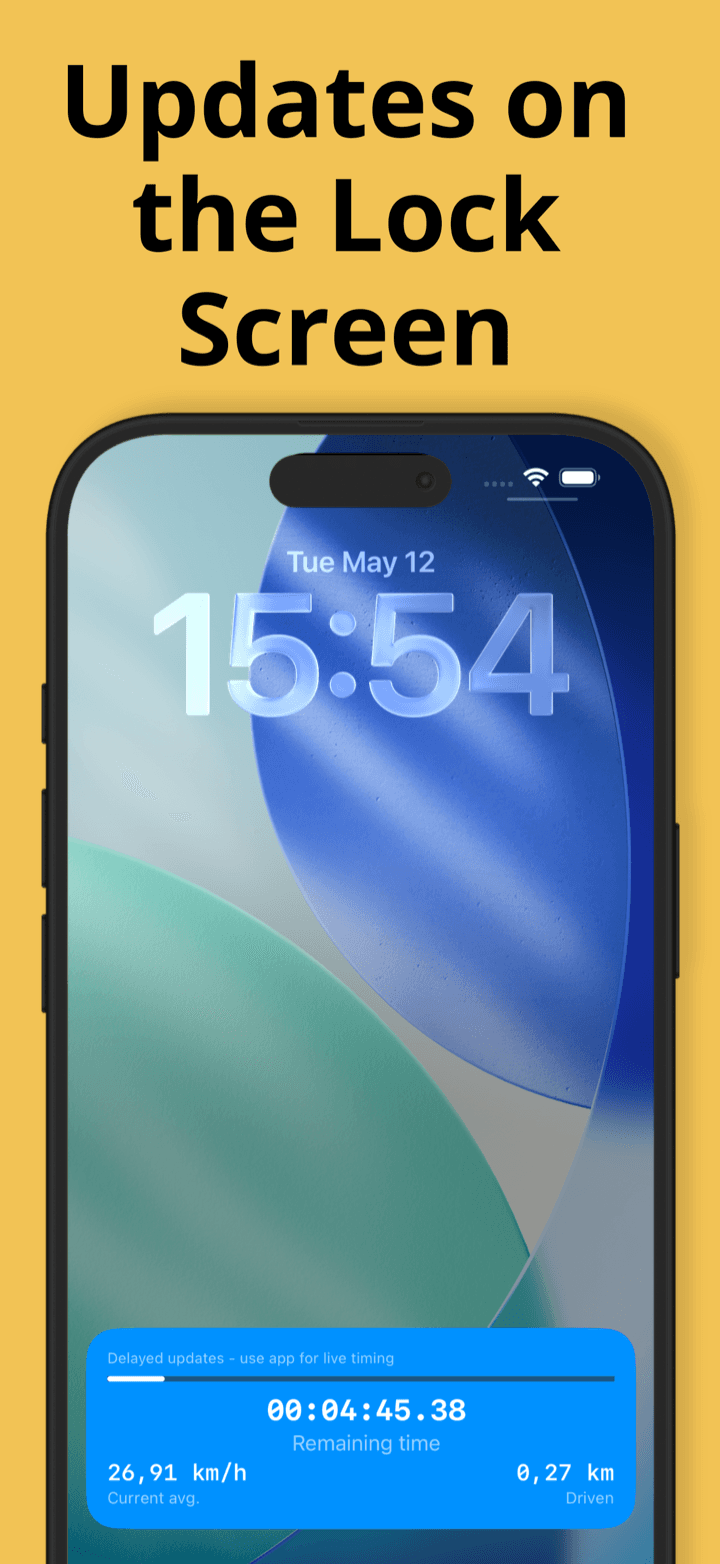
While a section is running the app shows a Live Activity on the lock screen. It contains the remaining time, a progress bar, Current avg. and Driven. On iPhones with a Dynamic Island the countdown also appears next to the camera; press and hold it to expand and see speed and distance.

The Live Activity updates once per second. That is why it says Delayed updates - use app for live timing at the top. For precise timing keep the app open in the foreground. The same tile also appears in the Smart Stack of a paired Apple Watch.

The Live Activity ends automatically when the run finishes or is reset.

iPhone lock screen with the Rally Co-Pilot Live Activity showing remaining time, average speed and driven distance

3.8Phone calls, backgrounding and crashes

  • App in the background: the countdown keeps running. The lock screen and the Apple Watch keep updating. Sounds keep playing.
  • Music or navigation: the spoken countdown mixes with other audio and does not stop your music.
  • App closed or crashed: a running run is stored the moment you start it. When you open the app again, the stage reopens and the countdown continues from the real start time. If the countdown ended while the app was closed, the run is recorded as finished.
  • Leaving the race screen: tapping Cancel resets all runs and stops live sharing. Use the home gesture instead if you only want to check something else on the phone.

Chapter 4

Sharing a race live

A driver can broadcast a running stage so that other people watch the countdown, speed and pace live on their own iPhone. Both sides need the app.

4.1Sharing your race as the driver

The link has the form www.rallycopilot.com/race/CODE. On an iPhone with the app installed it opens the live view directly. Without the app it opens a web page that leads to the App Store.

  1. 1Open the stage in race mode and tap the menu button in the top right.
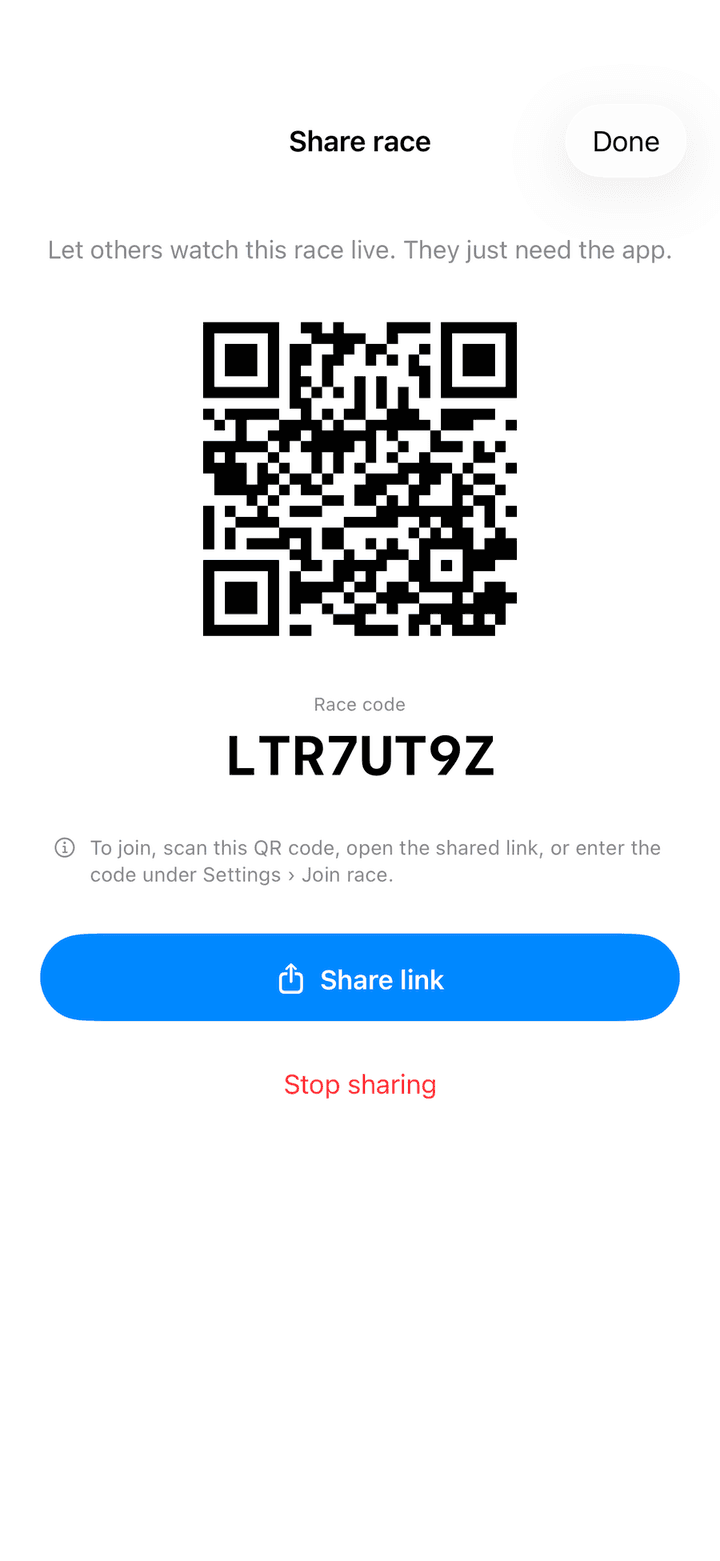
  2. 2Choose Share race. The share sheet opens and creates an eight-character Race code.
  3. 3Let the spectator scan the QR code, or tap Share link to send the link through Messages, WhatsApp or any other app. Alternatively read the code out loud. It never contains the letters O and I or the digits 0 and 1, so it is easy to say over a radio.
  4. 4Tap Done and drive. All running sections are broadcast about once per second.
  5. 5Tap Stop sharing in the share sheet to end the broadcast. Sharing also stops when you leave the race screen.
Share race sheet with a QR code, the race code, a Share link button and a Stop sharing button
The share sheet with QR code and race code

4.2Watching a race as a spectator

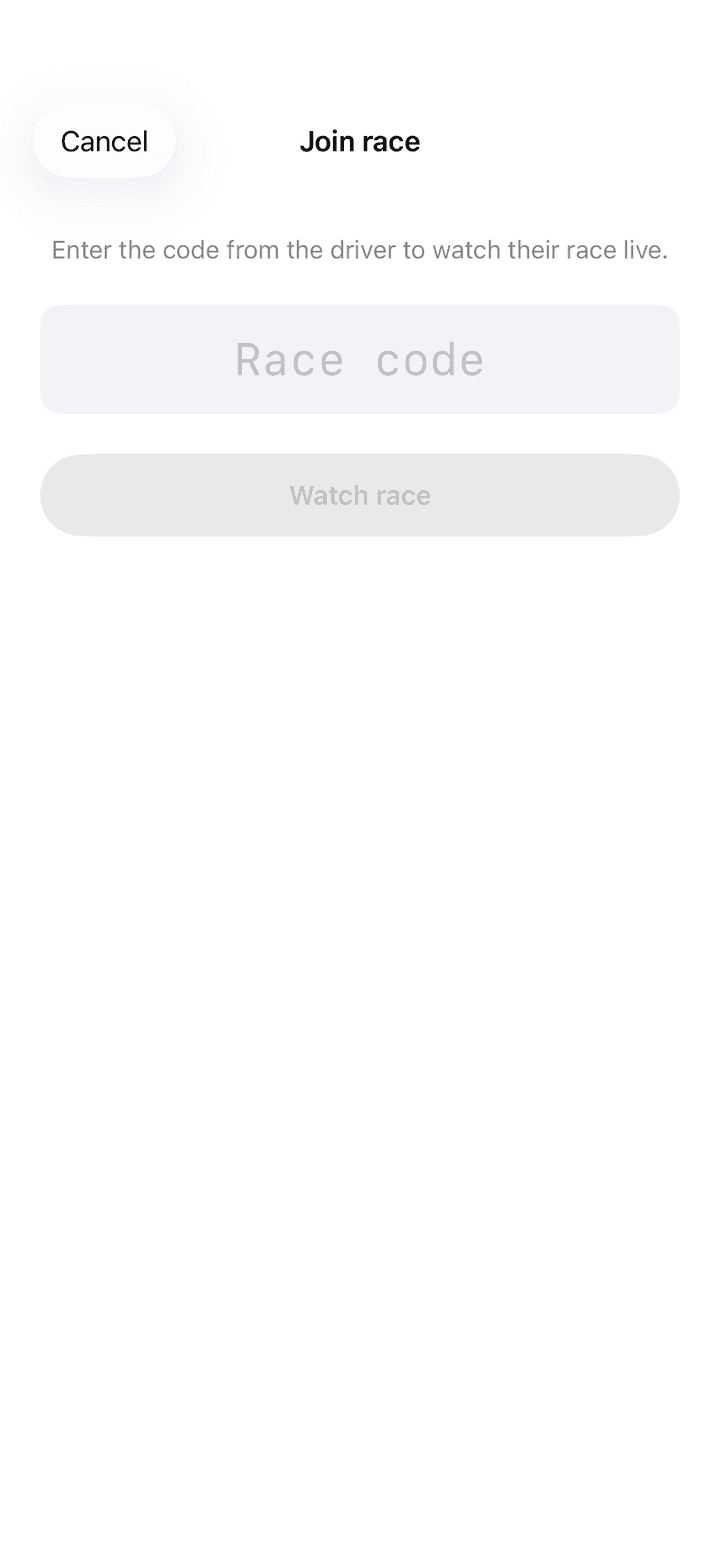
There are three ways to join: scan the QR code with the iPhone camera, open the shared link, or enter the code by hand. For the manual way, open Settings, tap Join race in the Spectate section, type the Race code and tap Watch race. The button becomes active after four characters.

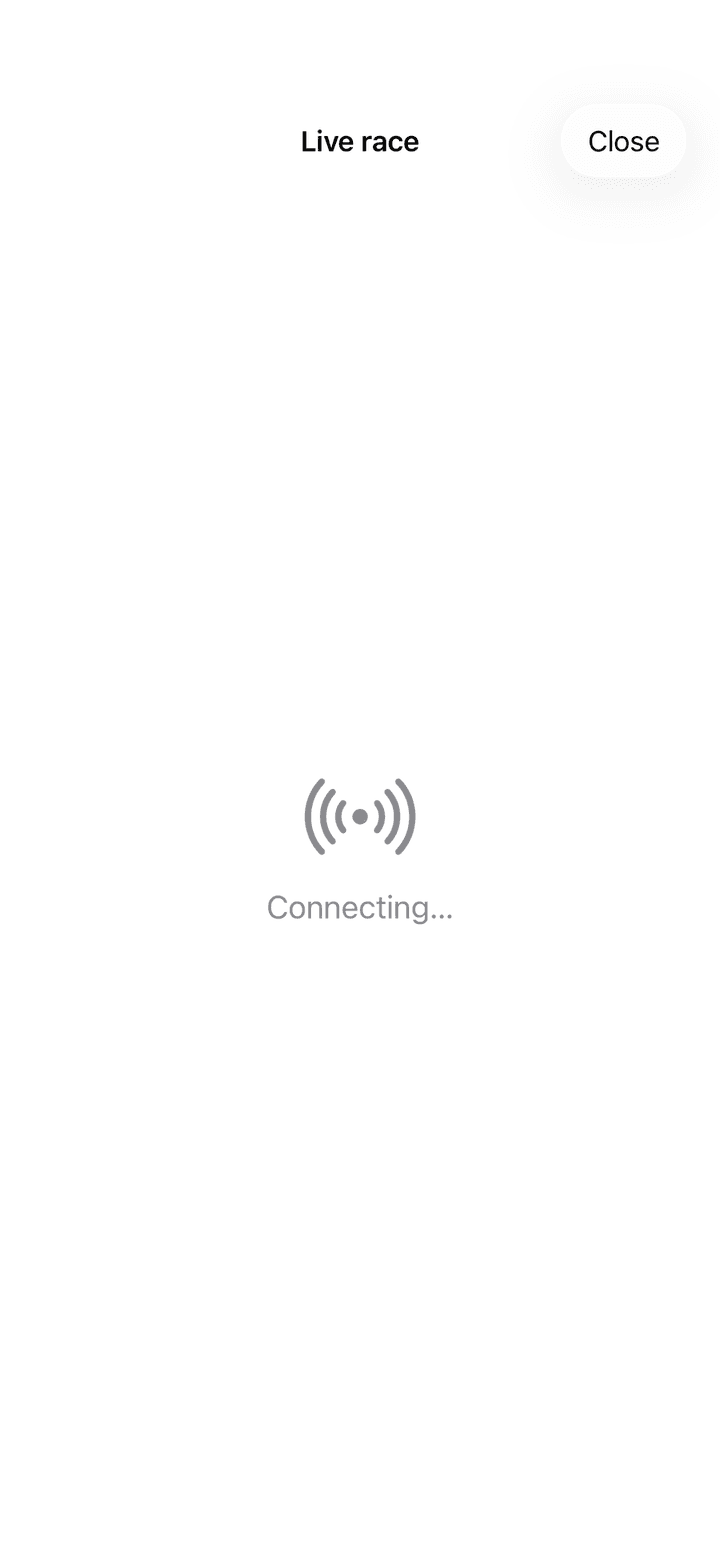
The live view opens full screen. Its title is the driver's stage name once data arrives. Until then it shows Connecting…, then Waiting for the driver… while the driver has not started a section. When the driver stops sharing you see Race ended.

While a section runs you see the same card as the driver: section number, progress bar, remaining time, pace meter, Goal speed, Current avg., Distance and Driven. The countdown ticks locally on your phone from the driver's start time, so it is exact. Speed, distance and pace lag by up to one second. Units follow your own device region. Tap Close to leave.

Anyone with the code can watch. Do not post it publicly if you want to keep the race private.

Join race screen with a field for the race code and the Watch race button
Enter the driver's code
Live race screen while connecting to the driver
Live view while connecting

Chapter 5

Timer tab: stopwatches and countdowns

The Timer tab holds any number of stopwatches and countdowns that are independent of your stages. Use them for time controls, tyre changes, a driver change or a lunch break.

5.1Stopwatches and countdowns

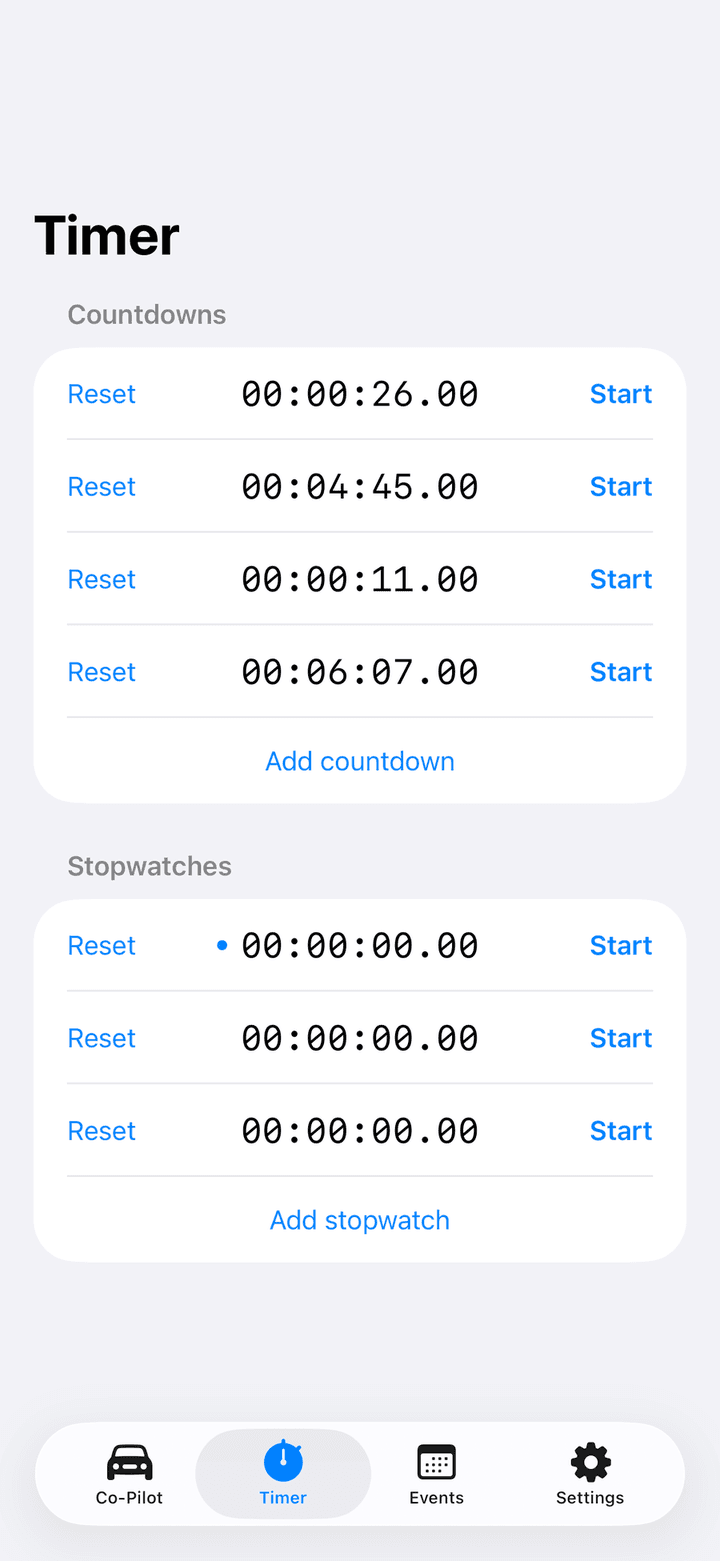
The screen has two lists. Countdowns at the top is empty at first. Stopwatches below starts with one stopwatch. Tap Add stopwatch to add more; there is no limit. Every row works the same way.

  • Reset on the left sets the time back to zero, or back to the full countdown time.
  • The time in the middle runs in hours, minutes, seconds and hundredths.
  • Start on the right starts the timer. While running it reads Pause. After a pause, Start continues from where you stopped.
  • Swipe a row to the left to delete it.
  • A small dot left of the time marks the timer that a remote control acts on. Tap anywhere on a row to select it. The dot only appears when a remote or controller is enabled in Settings.

Timers are not saved. When the app is fully closed, all stopwatches and countdowns are gone.

Timer tab with four countdowns and three stopwatches, each with Reset and Start buttons
The dot marks the timer a remote controls

5.2Adding a countdown

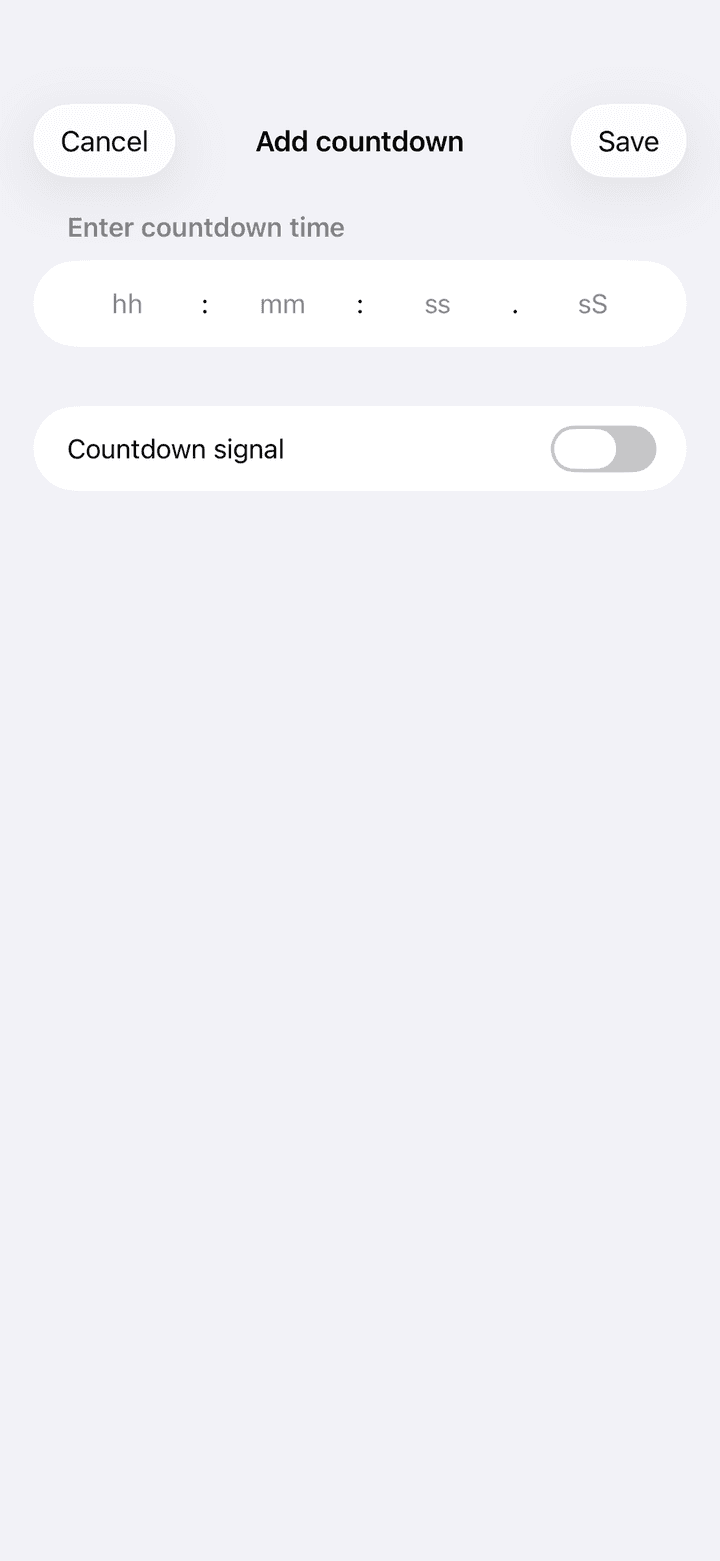
  1. 1Tap Add countdown at the end of the Countdowns list.
  2. 2Enter the time in the fields hh, mm, ss and hundredths.
  3. 3Switch Countdown signal on if the countdown should announce its last seconds. It then speaks or beeps exactly like a stage countdown, using the same Countdown in seconds and beep settings.
  4. 4Tap Save. The countdown appears in the list and shows its full time until you start it.
Add countdown sheet with fields for hours, minutes, seconds and hundredths and the Countdown signal switch
Enter the countdown time

5.3Controlling timers with a remote

While the Timer tab is open, a volume button, Bluetooth remote or game controller controls the selected timer instead of a stage. This needs Control timers in Settings › Remote Start to be on, which is the default.

  • Tap a countdown or stopwatch to select it. The dot marks the selection. If you have not tapped anything, the first stopwatch is selected.
  • Volume button or one-button remote: one press starts the selected timer, the next press pauses it.
  • Game controller: A or Cross starts, B or Circle pauses. The D-pad up and down moves the selection. If the selected timer is not running, B or Circle pauses any running timer.
  • Remote control of timers only works while the Timer tab is visible. As soon as you switch tabs, the remote controls stages again.

Chapter 6

Remote controls: volume buttons, Bluetooth remotes and game controllers

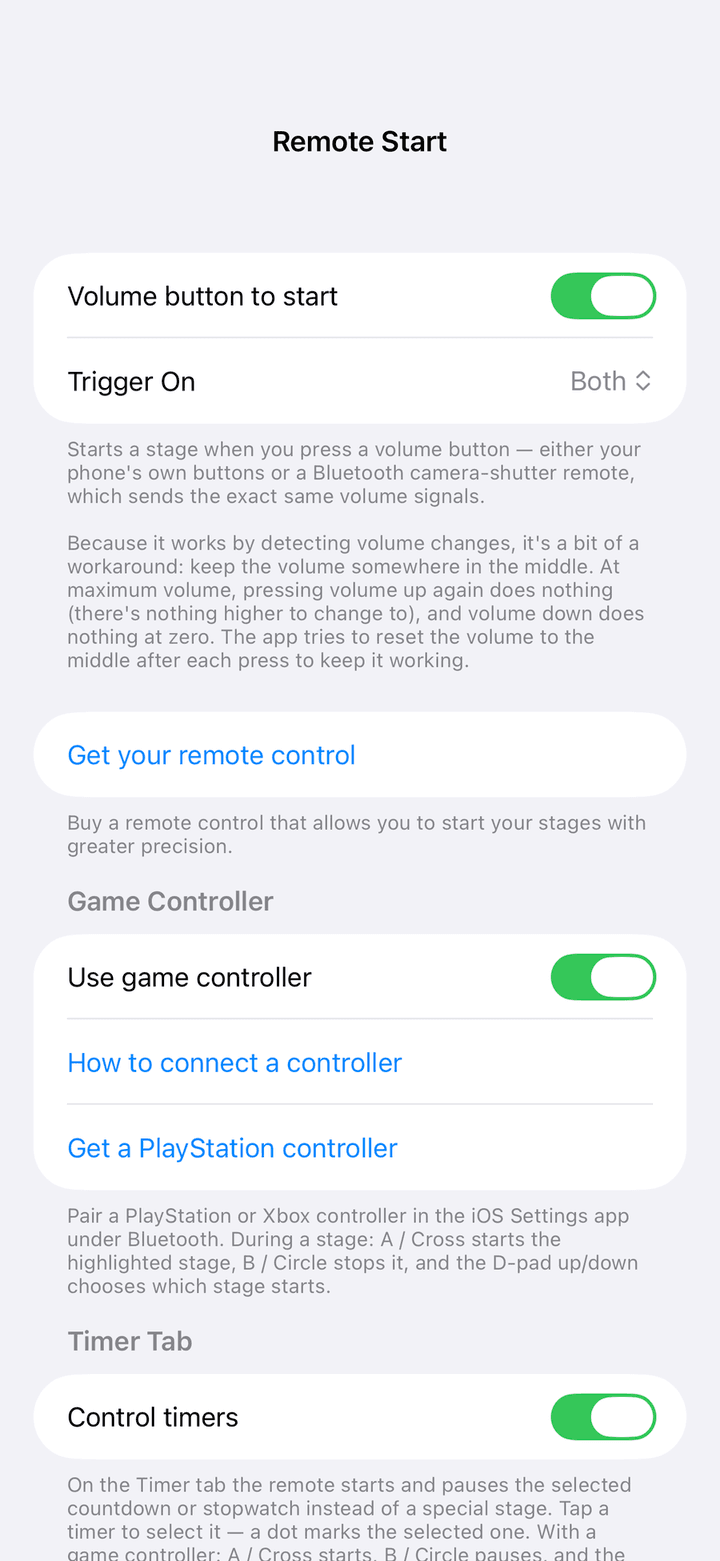
Starting a section by tapping the screen costs precision. Rally Co-Pilot can start sections with the iPhone volume buttons, with a cheap Bluetooth camera shutter remote, or with a PlayStation or Xbox controller. All of this is configured under Settings › Accessories › Remote Start.

6.1Volume buttons and Bluetooth shutter remotes

A Bluetooth camera shutter remote sends exactly the same signal as the volume buttons of your iPhone. Rally Co-Pilot detects a change of the volume level and treats it as a button press. This works with the phone's own buttons and with any shutter remote you pair in the iOS Bluetooth settings.

  • Volume button to start: on by default. Switch it off if you never want a volume press to start a section.
  • Trigger On: choose Volume Up, Volume Down or Both. With a two-button remote you can, for example, ignore the down button so an accidental press does nothing.
  • In race mode a press starts the section marked Next. During a running circuit a press ends the current lap. A volume press cannot stop a running section; use the on-screen Reset or a game controller for that.
  • On the Timer tab a press starts or pauses the selected timer (see 5.3).

Keep the media volume somewhere in the middle. At full volume, volume up changes nothing and cannot be detected. The app resets the volume to the middle after each press, but a first press at the limit can be lost.

Remote Start settings with the Volume button to start switch, the Trigger On picker, the Game Controller section and the Control timers switch
Settings › Accessories › Remote Start

6.2Game controllers

PlayStation (DualShock 4, DualSense), Xbox Wireless and other MFi controllers work as a full remote with start, stop and selection. Pair the controller in the iOS Settings app under Bluetooth. Rally Co-Pilot then picks it up automatically, also when you switch it on after opening the stage.

  1. 1Pair the controller once in iOS Settings › Bluetooth.
  2. 2In Rally Co-Pilot open Settings › Remote Start and switch Use game controller on.
  3. 3Open a stage in race mode. The controller is armed as long as the race screen is open.
ButtonIn race modeOn the Timer tab
A / CrossStarts the section marked Next. During a running circuit it ends the current lap.Starts the selected timer
B / CircleStops the running section (same as Reset) or ends the circuit session.Pauses the selected timer
D-pad up / down or left stickMoves the Next badge to choose which section starts.Moves the selection dot

6.3Which section a remote starts

The Next badge on a section card shows the target of the next remote or controller press. It normally sits on the first section that has not been started yet and moves on by itself whenever a section starts, finishes or is reset. With a controller you can move it manually with the D-pad; that manual choice lasts until the next start, finish or reset.

  • A section with Auto start switched on ignores remote presses. It is owned by the end of the previous section.
  • A running circuit owns the remote: every press is a line crossing, never the start of another section.
  • If the badge points at a running section, the press starts the next startable section instead, so a press never does nothing.

Chapter 7

RaceBox GPS receiver

A RaceBox is an external GNSS receiver that sends 25 position updates per second over Bluetooth. Connected to Rally Co-Pilot, it replaces the phone GPS as the source for speed, distance and pace.

7.1Supported devices

Rally Co-Pilot recognises the RaceBox Mini, RaceBox Mini S and RaceBox Micro. The app uses the device as a live GPS source only. It does not download recordings from the device's memory and does not use its G-force sensors.

The RaceBox sends 25 readings per second. The app keeps every reading for the fix, battery and satellite display, and uses about four readings per second for positioning. That is still around four times more than the phone GPS and keeps your iCloud data small.

7.2Connecting a RaceBox

  1. 1Switch the RaceBox on. Do not pair it in the iOS Bluetooth settings; the connection is made inside the app.
  2. 2In Rally Co-Pilot open Settings and tap Connect RaceBox in the Accessories section. iOS asks for Bluetooth permission the first time. Allow it.
  3. 3The status reads Scanning for RaceBox.... Your device appears under Available Devices with a signal strength icon. Tap it.
  4. 4The status changes to Connecting... and then shows the connected device with Model, Firmware, Battery, the fix quality and the number of Satellites.
  5. 5Switch Use RaceBox as GPS source on. Without this switch the RaceBox stays connected but the phone GPS is used.
  • The fix row reads 3D fix, 2D fix or No fix. A green check mark means the fix is good enough for timing. An orange or red warning means the app is waiting for a better fix.
  • Battery depleted — charge soon appears when the device reports an empty battery. The connection keeps working.
  • Disconnect ends the connection for the rest of the session. The RaceBox will not reconnect automatically until you restart the app or tap it again.
  • The RaceBox is remembered. On the next app launch it reconnects automatically as soon as it is switched on.
  • If Bluetooth is off, the screen tells you Turn on Bluetooth to connect to your RaceBox. If the permission was denied, tap Open Settings.

On the RaceBox the app sets the automotive GNSS mode once after connecting. That needs firmware 3.3 or newer. Older firmware keeps working, only without that optimisation.

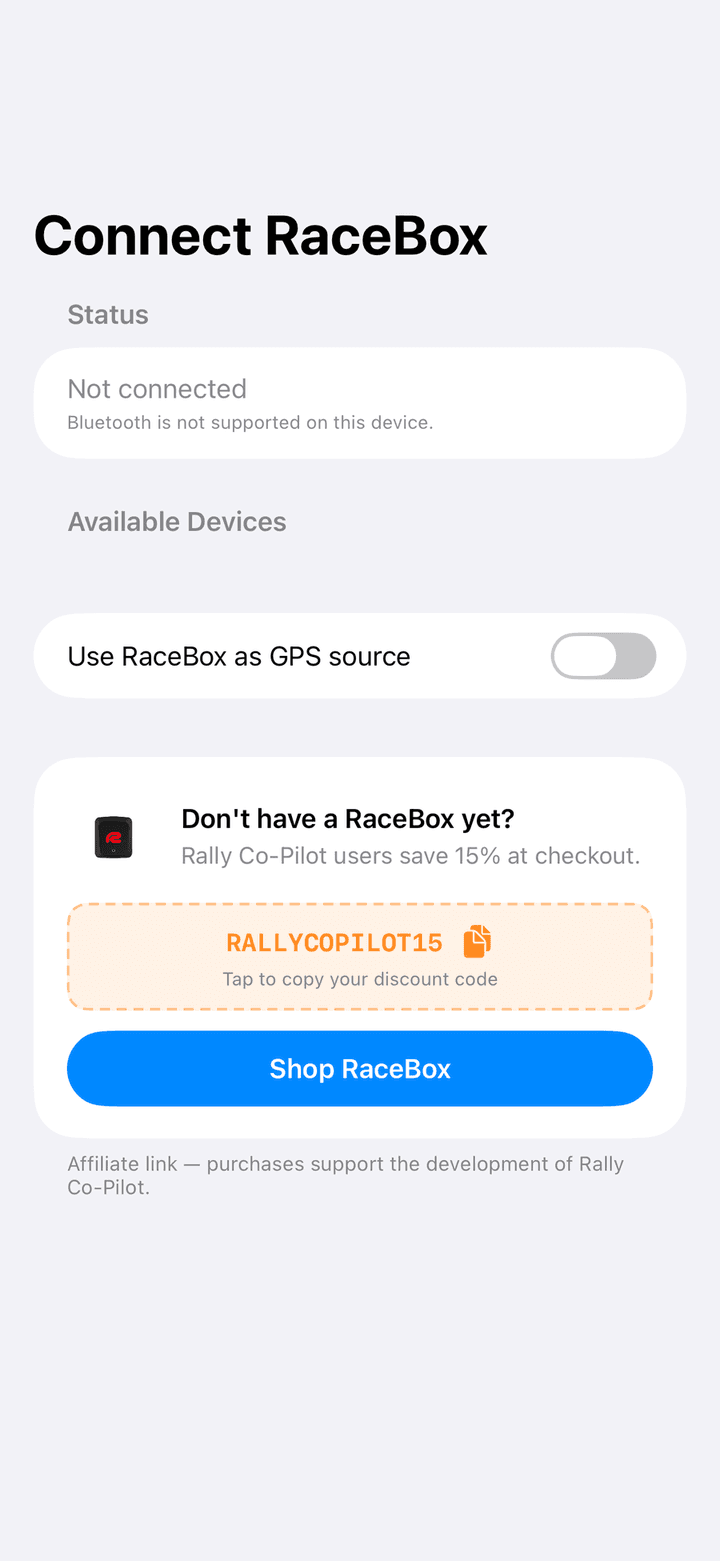
Connect RaceBox screen with the status, the Use RaceBox as GPS source switch and the shop section with a discount code
Settings › Accessories › Connect RaceBox

7.3RaceBox during a stage

  • In race mode a badge above Current Speed reads RaceBox • 3D in green while the RaceBox delivers good data.
  • If the RaceBox loses its fix or the connection for more than two seconds, the badge turns orange and reads RaceBox unavailable • phone GPS. The phone GPS takes over instantly so the countdown and pace never stop. The app switches back to the RaceBox with the first good reading.
  • The Bluetooth link is kept while a section is running, even with the phone locked.
  • When you leave the app with no section running, the connection is released so the RaceBox is not blocked. It reconnects when you return.
  • In Settings the RaceBox row shows the model name and the battery percentage while connected.

7.4RaceBox discount

As a Rally Co-Pilot user you get 15 percent off in the RaceBox store with the code RALLYCOPILOT15. The code is shown once as a full-screen offer, and it stays available at the bottom of the Connect RaceBox screen as long as no device is connected. Tap the code to copy it, then tap Shop RaceBox. Purchases through this link support the development of the app.

RaceBox promotion with the 15 percent discount code RALLYCOPILOT15 and a Shop RaceBox button
The offer is shown once when no RaceBox is connected

Chapter 8

Apple Watch app

The Apple Watch app is a glance at the running stage. It shows what the phone is timing so the iPhone can stay mounted while you look at your wrist.

8.1What the watch shows

Install the watch app from the Watch app on your iPhone. It needs no setup. As long as no section is running it shows No active stage and the current time.

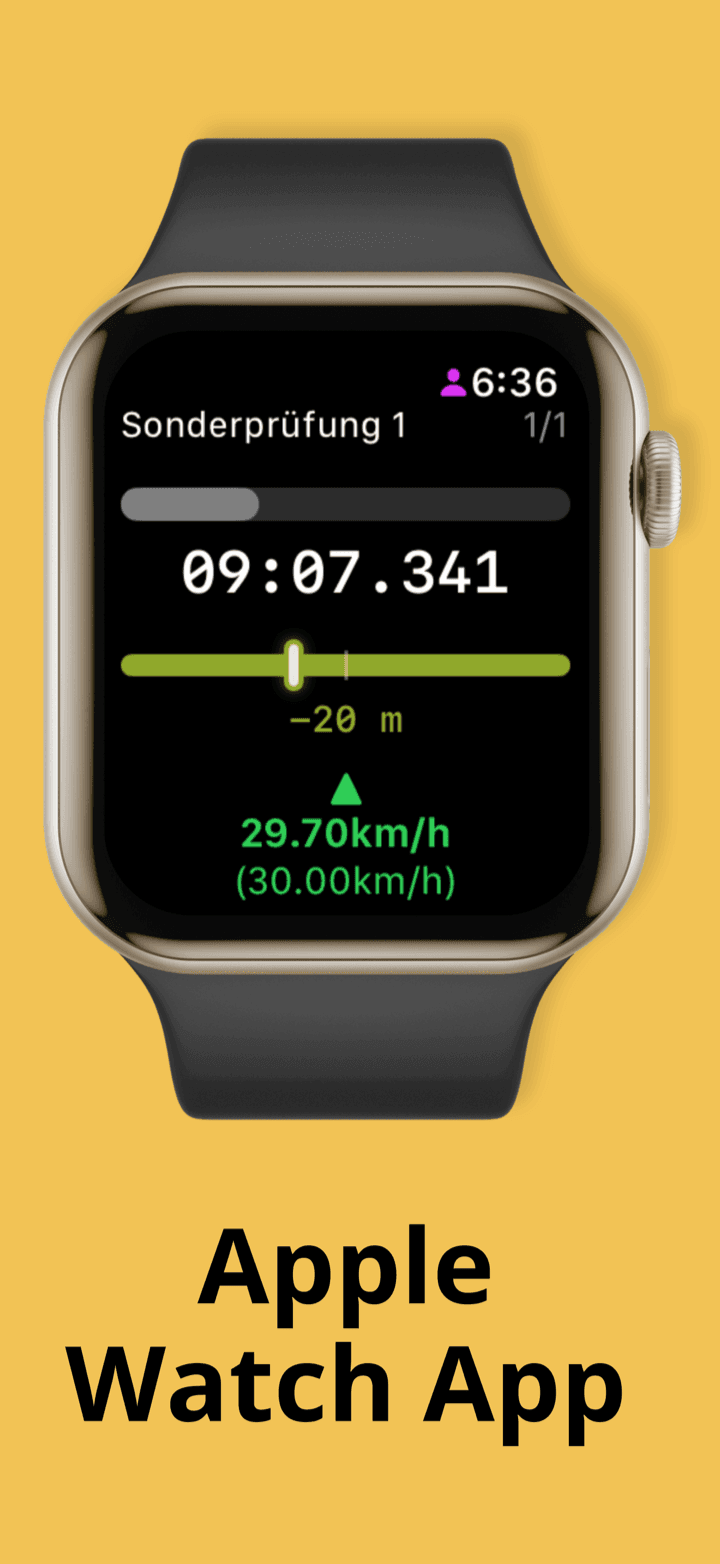
As soon as you start a section, the watch shows the stage name and the section number, a progress bar, the remaining time in large digits, the pace meter with its metre or second readout, and your current speed with the target speed in brackets. Green, orange and red mean the same as on the phone. If two sections run at the same time, swipe between them.

  • The watch is display only. You cannot start, stop or reset a section from the watch.
  • Timers from the Timer tab are not shown on the watch.
  • The watch app is in English regardless of the phone language.
  • The watch receives an update every second and ticks the countdown itself in between, so the time is smooth and exact.
  • If the watch app was closed, it shows the last known state when you reopen it until the phone sends new data.
Apple Watch showing the stage name, remaining time, pace meter and current speed

Chapter 9

Events tab

The Events tab is a calendar of classic car rallies and regularity events. It needs an internet connection.

9.1Browsing events

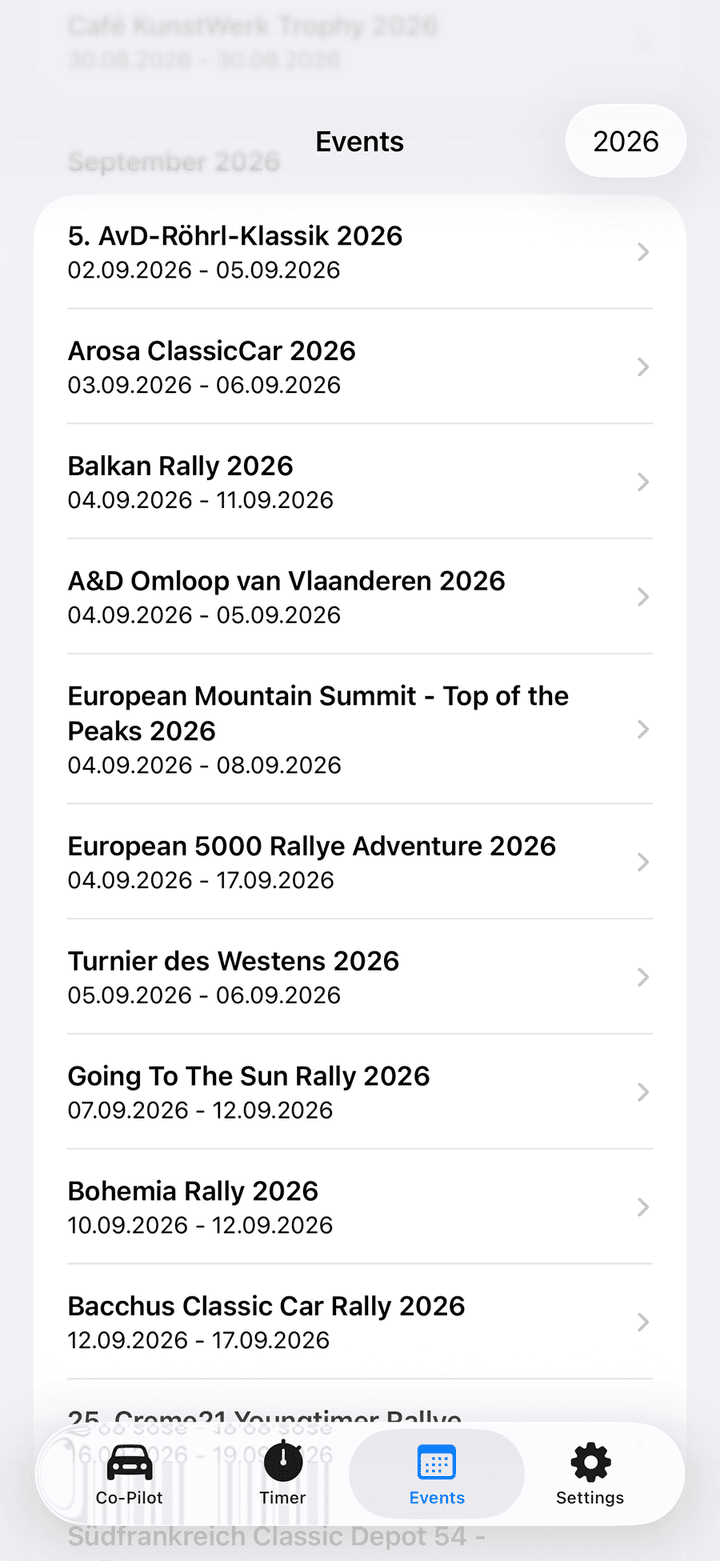
  • Events are grouped by month and sorted by start date. The list opens at the current month.
  • Tap the year button in the top right to switch between years.
  • Use the search field to filter by event name. The search only matches the title, not the description or location.
  • If the list stays empty, check your internet connection and open the tab again.
Events tab with a month section, event rows with dates and the year button
Events grouped by month

9.2Event details

  • The large photo at the top zooms when you pull the page down. Tap it to open the event website.
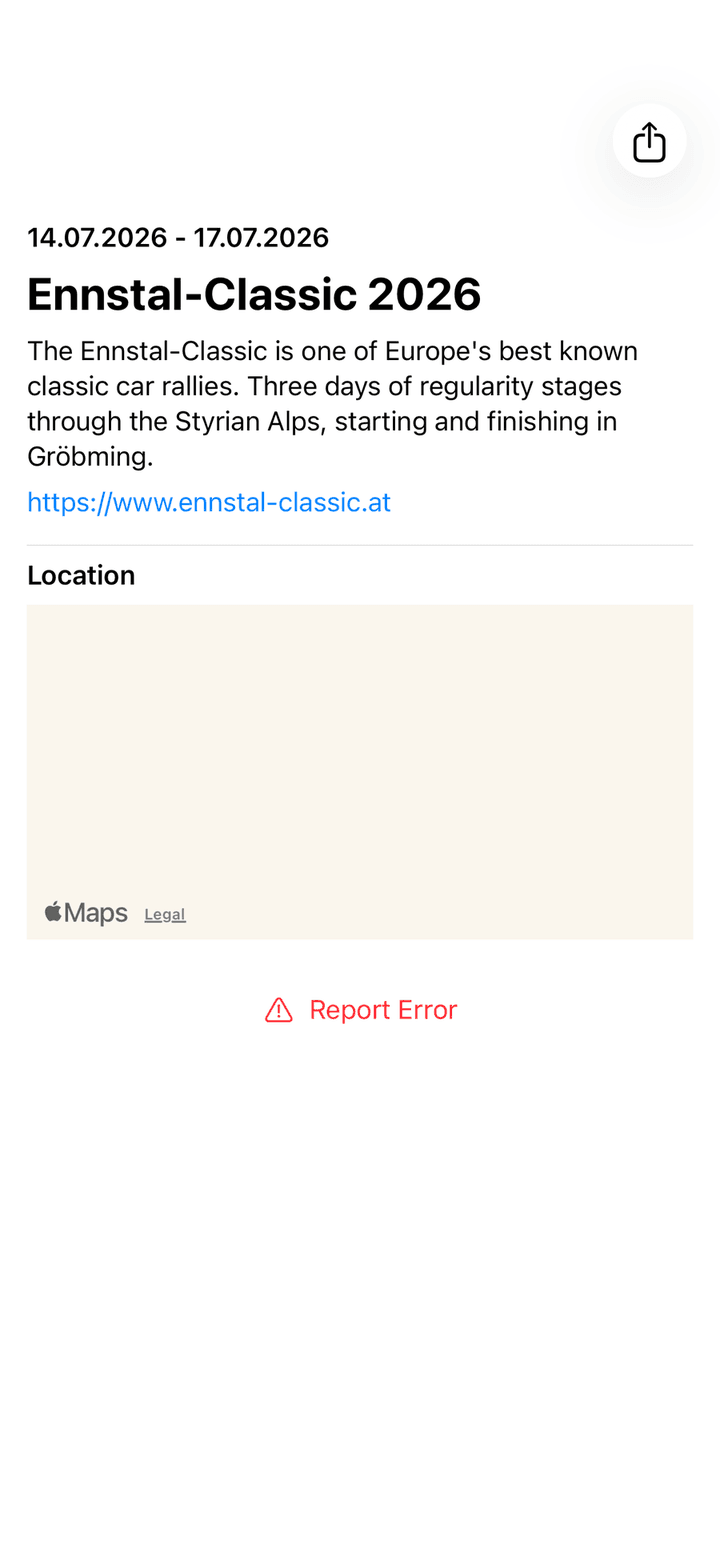
  • Below you find the dates, the title, the description and the website link.
  • Location shows a small map when the event has coordinates.
  • Report Error opens a pre-filled email to the support address with the event details. Tell us what is wrong and we fix it.
  • The share button in the top right shares title, description and website through the system share sheet.
Event detail screen with dates, title, description, website link, location map and a Report Error button
An event detail page

Chapter 10

Settings

The Settings tab collects everything that is not part of a stage. Here is every row and what it does.

10.1App settings

There is no global unit setting. Speed and distance units are chosen per field in the section editor with the km/h/mph and km/mi switches. The default follows the region of your iPhone: miles for the US and UK, kilometres everywhere else. In race mode, tap Current Speed to change the unit of the live speed.

RowWhat it does
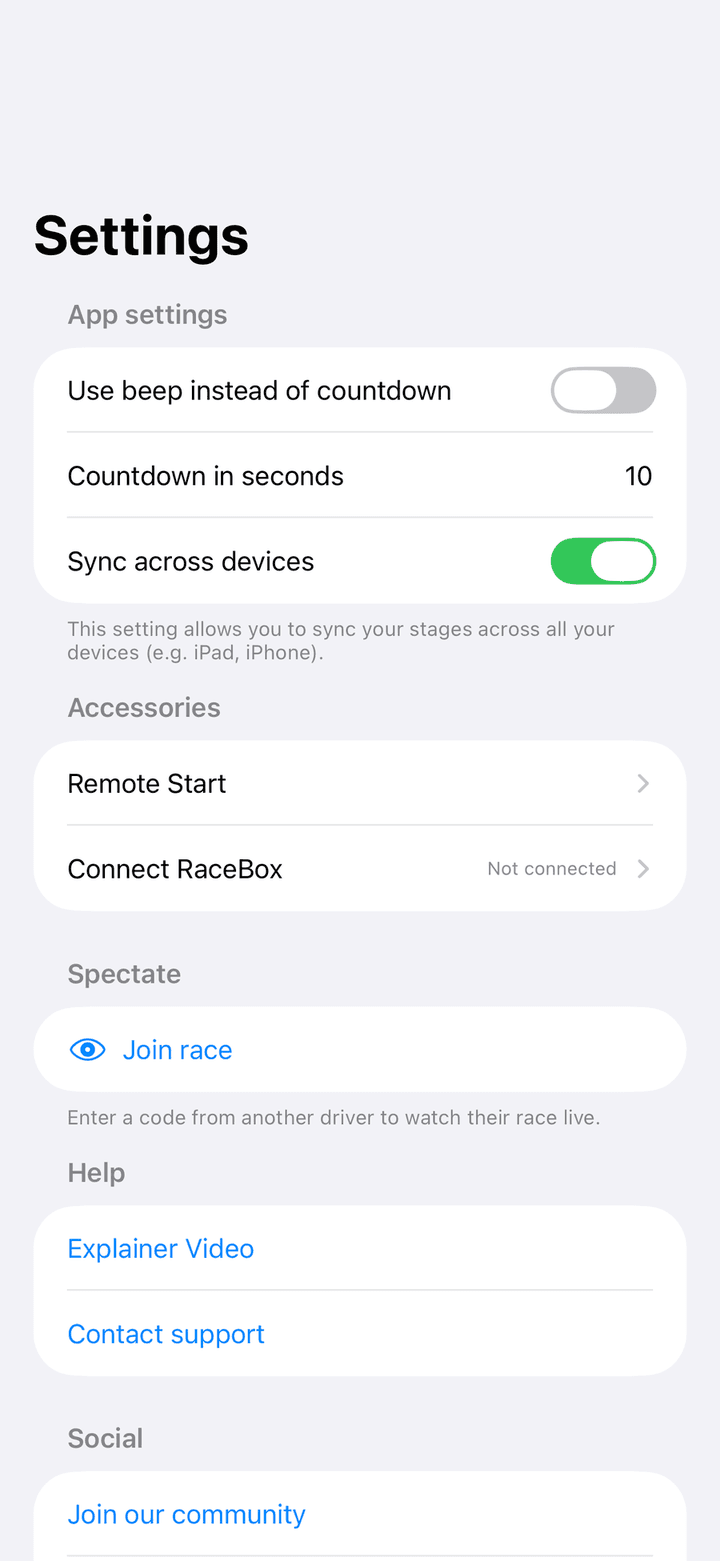
Use beep instead of countdownOff: the last seconds are spoken. On: a short beep per second instead. Applies to stage sections and to countdowns with the signal switched on.
Countdown in secondsHow many seconds before zero the spoken or beeped countdown starts. Default is 10.
Sync across devicesStores your stages in your private iCloud database so they appear on all your devices signed in to the same Apple account. With it off, you only see stages created on this device.
Settings tab with App settings, Accessories, Spectate, Help and Social sections
The Settings tab

10.2Accessories, Spectate, Help, Social and Legal

RowWhat it does
Remote StartVolume button, Bluetooth remote and game controller options. See chapter 6.
Connect RaceBoxConnect a RaceBox and choose it as GPS source. See chapter 7. Shows the model and battery when connected.
Join raceEnter another driver's race code to watch their race live. See 4.2.
Explainer VideoOpens a video walkthrough of the app.
Contact supportOpens an email to [email protected]. The email body contains your anonymous user ID. Keep it in the message so we can find your purchase.
Restore PurchasesRestores a purchase made with the same Apple account, for example after reinstalling the app or on a new iPhone.
Join our communityOpens the Rally Co-Pilot Facebook page.
NewsletterSign up for the newsletter with your email address. The stored address is shown in grey. Optional.
Privacy policy, Terms of service, ImprintOpen the legal documents.
VersionThe installed app version. Mention it when you contact support.

Chapter 11

Sync and privacy

Rally Co-Pilot has no user account. There is nothing to sign up for and no password. Your stages live on your device and, with sync on, in your private iCloud.

11.1iCloud sync between iPhone and iPad

  • Switch Sync across devices on in Settings on every device.
  • All devices must be signed in to the same Apple account with iCloud Drive enabled.
  • Stages, sections and recorded runs sync. Timers on the Timer tab do not.
  • Sync can take a moment after you save. Open the Co-Pilot tab again if a stage is missing.
  • Switching sync off does not delete anything. It only hides stages created on other devices.

11.2Privacy

  • Roadbook scanning runs completely on your device. No image, PDF or text is uploaded.
  • Live race sharing sends only the numbers you see in the spectator view: countdown, speed, distance and pace. It is only active while you share.
  • The app collects anonymous usage statistics such as how often a stage is created. It never sends stage names, positions or roadbook content.
  • Recorded runs are also made available to the companion app Oldtimer Co-Pilot through your private iCloud database. Nothing is shared publicly.

Troubleshooting

The speed shows Location disabled or Bad GPS...

Location disabled means Rally Co-Pilot has no location permission. Open the iOS Settings app, go to Rally Co-Pilot and set Location to While Using the App or Always. Bad GPS... means the current fix is too inaccurate. Move the phone to a spot with a clear view of the sky, for example the dashboard instead of a pocket, and wait a few seconds. With a RaceBox the badge tells you whether the RaceBox or the phone GPS is in use.

My volume button or remote does not start the section.

Check that Volume button to start is on under Settings › Accessories › Remote Start and that Trigger On matches the button you press. Set the media volume to the middle: at full volume a volume-up press changes nothing and is not detected. Make sure the race screen is open and the section you want has no Auto start switch turned on. On the Timer tab the remote controls timers, not stages.

My stages are missing on my iPad.

Switch Sync across devices on in Settings on both devices, sign both into the same Apple account with iCloud Drive enabled, and open the Co-Pilot tab again after a moment. Stages created on another device are hidden while sync is off.

I cannot find the Scan Roadbook button.

The button only appears on devices with iOS 26 or newer and Apple Intelligence switched on with the model downloaded. On other devices, enter the sections manually with Add stage.

The Auto start switch is off again after I reopened the app.

Auto start is not stored with the stage. Switch it on again in race mode before you start section 1.

The countdown is silent.

The spoken countdown or beep only plays during the last seconds set under Countdown in seconds, 10 by default. Check the ring/silent switch and the volume. On the Timer tab, a countdown only announces its last seconds when Countdown signal was switched on when you created it.

The Events tab is empty.

Events are loaded from the internet each time. Check your connection, then switch to another tab and back. Also check the selected year in the top right corner.

The RaceBox shows Connecting... forever.

Tap Cancel, switch the RaceBox off and on, and make sure it is not connected to another phone or the RaceBox app. Then tap it again under Available Devices. If you tapped Disconnect earlier, the app does not reconnect automatically until you restart it.

Still have a question?

Write to us. We answer every email and use your questions to improve the app and this manual.

[email protected]

Drive successfull classic rallies with the Rally Co-Pilot app

Download Now
How to Use Rally Co-Pilot: The Complete Manual for the iPhone App